OneDrive
What is OneDrive?
- OneDrive is cloud storage service that allows you to upload the files, share the files and collaborate the files online and access them from anywhere.
- You can store documents, photos and videos securely, and they remain accessible even if your device is lost or damaged.
- Your data will be stored in Microsoft Data Center.
- It uses TLS protocol while data is in rest and it uses SSL while data is moving to/from cloud.
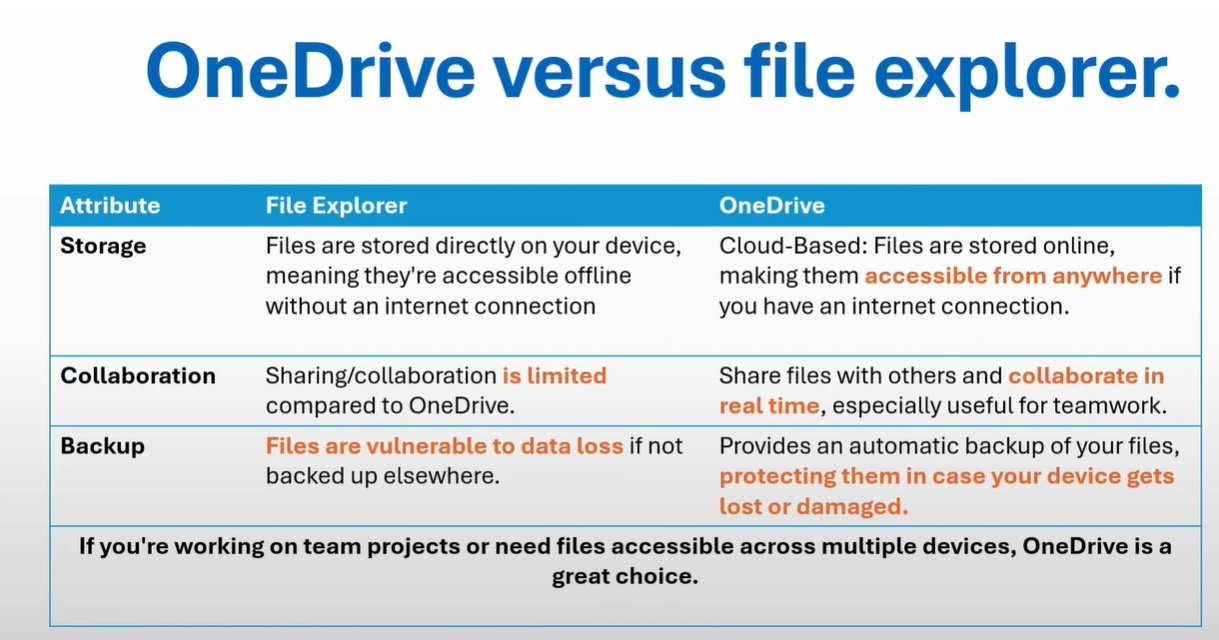
- Files stored in OneDrive can be accessed from any device with an internet connection.
- File can be share with others and collaborate (multiple users can work) in real time using tools like word or excel.
- Anyone can access the same file from central location and all changes by anyone will be saved automatically, you do not need to save it manually.
- File Sharing: You can share files with multiple users instead of sharing file multiple times via attachment in outlook.
- Co-authoring: Multiple users will access and work on the same file.
- You can access the files using online apps like word, excel, etc and it does not to be installed in your pc.
- Storage: You will get 1TB normally which can be extend to 5TB to 25TB
OneDrive Vs File Explorer.
- code
Benefits of OneDrive
- Anywhere Access: Access your files from any device with an internet connection, whether its a PC, tablet or smartphone.
- Automatic Backup: Keeps your files safe by backing them up to the cloud. No worries if your device gets lost or damaged.
- Seamless Collaboration: Shares files with others and work together in real time using tools like word, excel or powerpoint. Anychanges from anyone working on files will be saved automatically.
- Online Computing: As a part of your subcription, you can use the web versions of the desktop apps you use daily.
- Enhanced Security: Protects your files with advanced encryption and ransomware detection features.
code
Accessing OneDrive.
online
- Open browser and go to office.com or m365.cloud.microsoft and sign in and click app launcher and click onedrive.
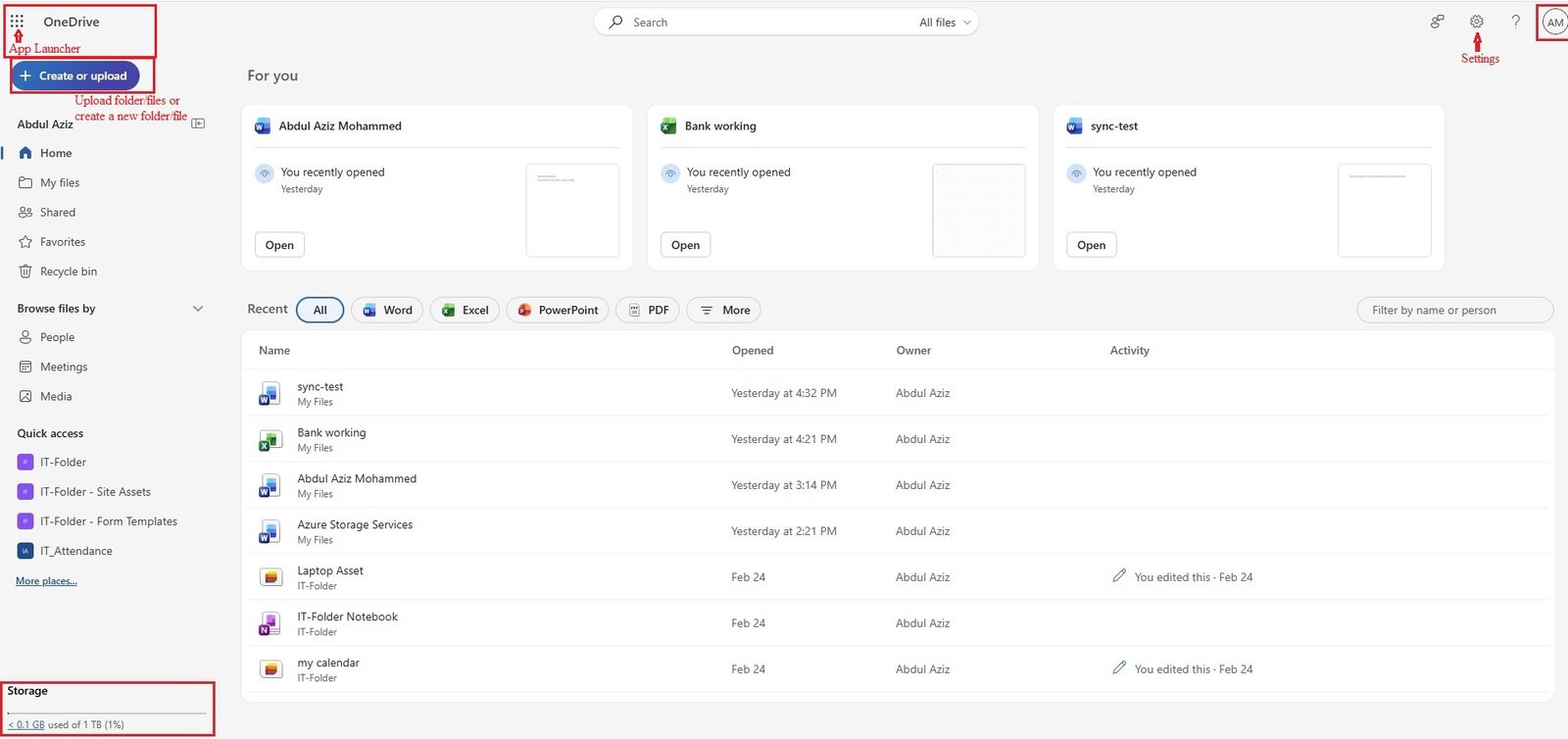
- App Launcher: Click app launcher to get access to other apps like word, excel, outlook, etc..
Settings: Gear icon on top right corner
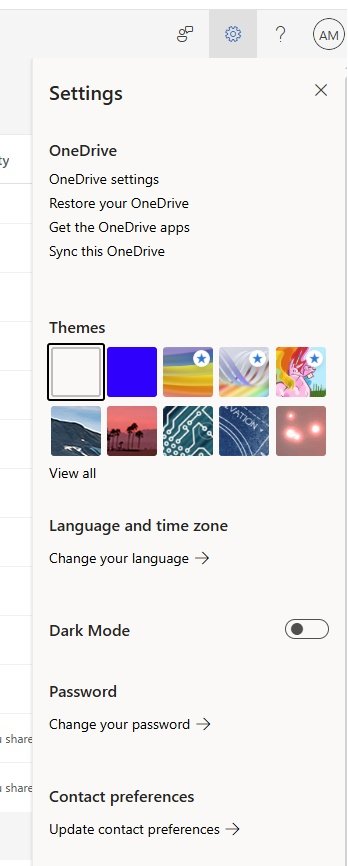
OneDrive settings:
- Notifications
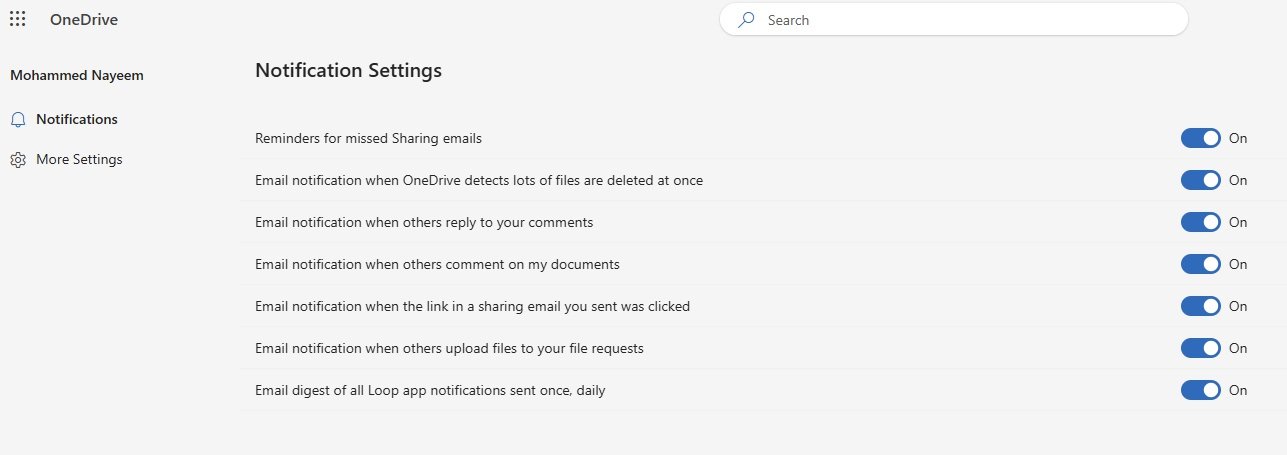
- Reminder for missed Sharing emails : on/off
- Email notification when Onedrive detects lots of files are deleted at once: on/off
- Email notification when others reply to your comments: on/off
- Email notification when the link in a sharing email you sent was clicked: on/off
- Email notification when others upload files to your file requests: on/off
- Email digest of all Loop app notifications sent once daily: on/off
- More Settings: These remaining settings related with sharepoint site.
- Manage access
- Site collection administrators:
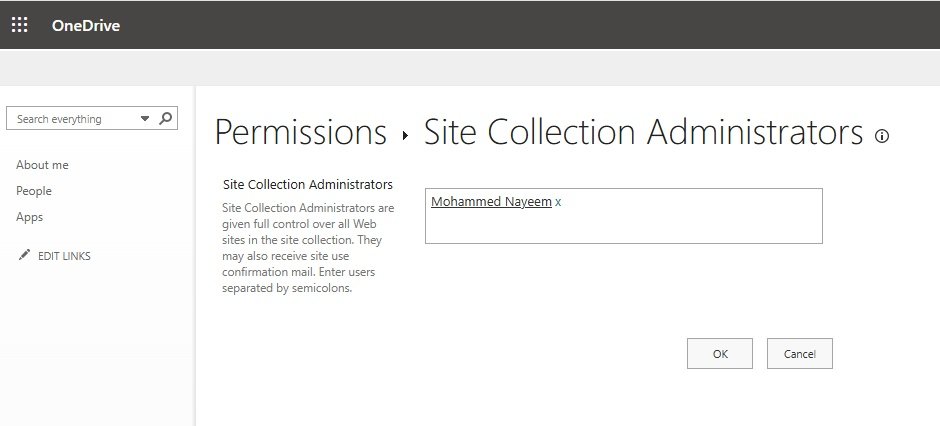
- click ok to continue.
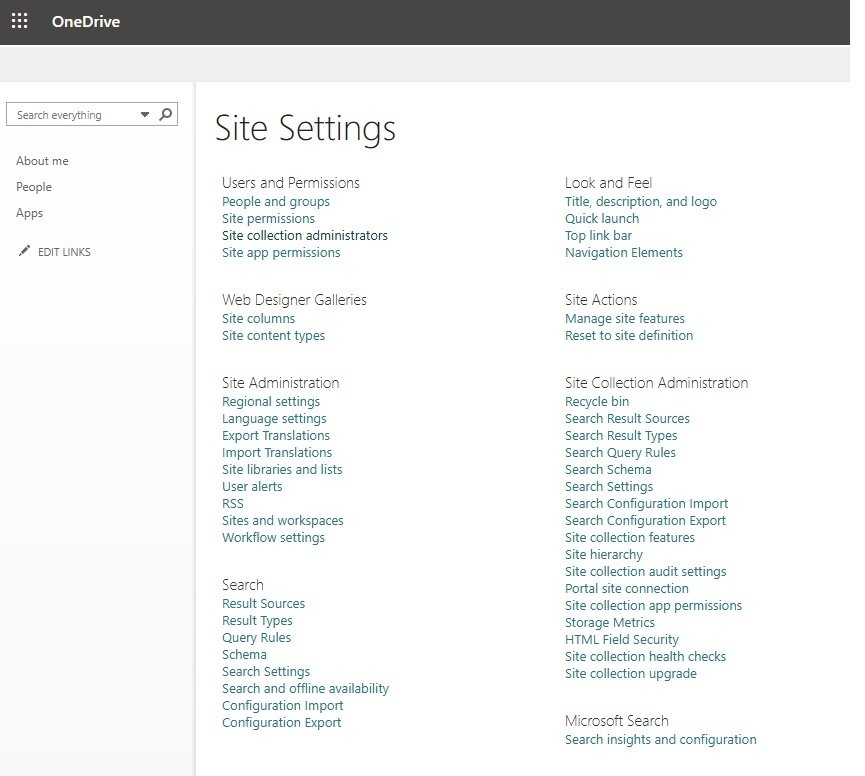
- Users and Permission:
- People and groups
- Site permissions:
- Site collection administrators:
- Site app permissions:
- Look and Feel
- Title, description, and logo:
- Quick launch:
- Top link bar:
- Navigation Elements:
- Web Designer Galleries
- Site columns:
- Site content types:
- Site Actions
- Manage site features:
- Reset to site definition:
- Site Administration
- Regional settings:
- Language settings:
- Export Translations:
- Import Translations:
- Site Libraries and lists:
- Usr alerts:
- RSS:
- Sites and workspaces:
- Workflow settings:
- Site Collection Administration
- Recycle bin:
- Search Result Sources:
- Search Result Types:
- Search Query Rules:
- Search Schema:
- Search Settings:
- Search Configuration Import:
- Search Configuration Export:
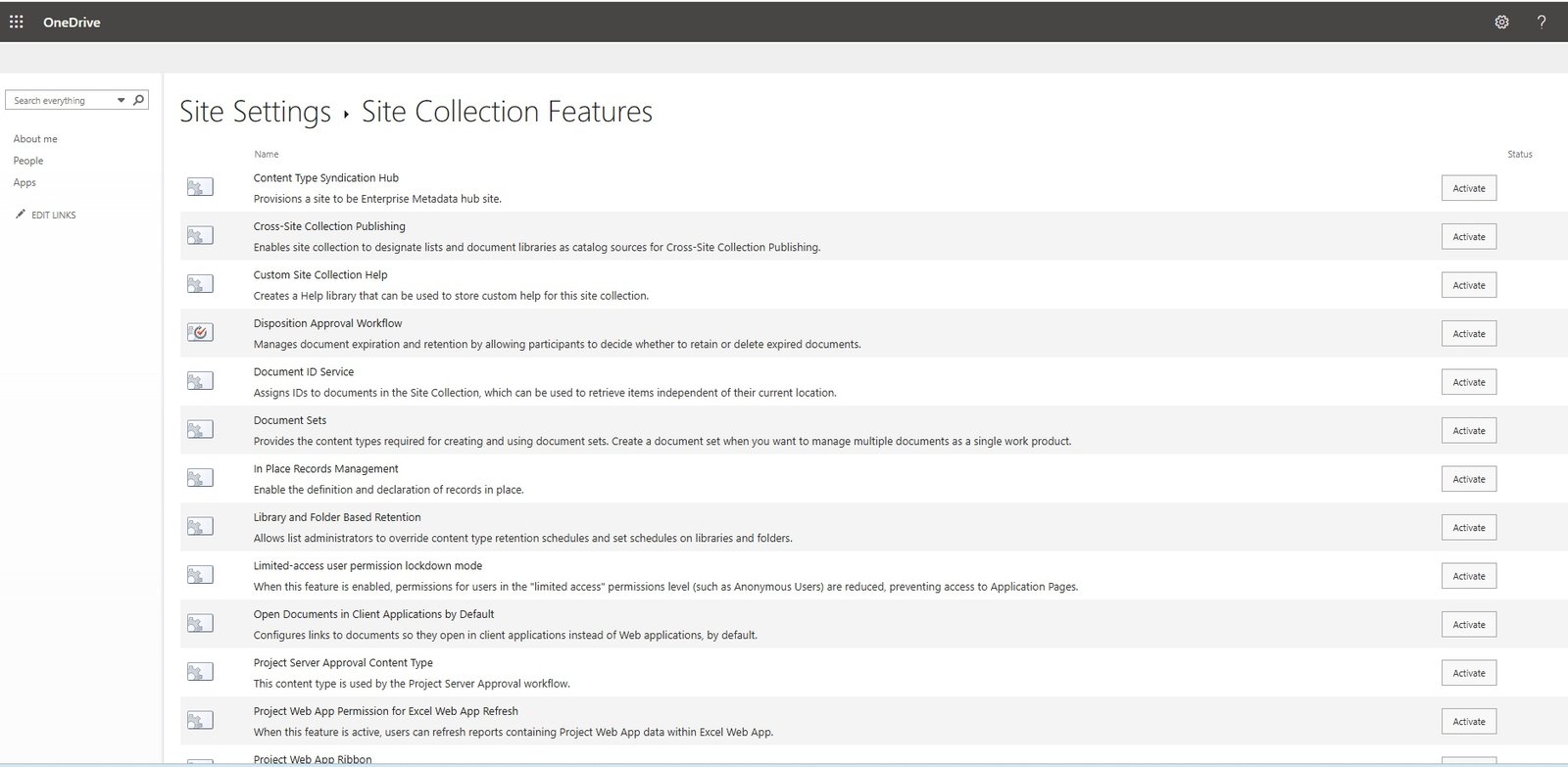
- Site Collection features:
- Site hierarchy:
- Site collection audit settings:
- Portal hierarchy:
- Site collection audit settings:
- Portal site connection:
- Site collection app permissions:
- Sorage metrics:
- HTML field security:
- Site colleciton health checks:
- Site collection upgrade:
- Search
- Result Sources:
- Result Types:
- Query Rules:
- Schema:
- Search Settings:
- Search and Offline availability:
- Configuration Import:
- Configuration Export:
- Manage guest expiration:
- Your organization does not require guests to lose access based on an expiration date.
- Run sharing report:
- It will generate a sharing report.
- Region and Language:
- Regional settings:
- Language settings:
- The default language for this site is English. Enable translation into multiple languages to allow translation of the site name, navigation, footer, pages, and news.
- Select language = Arabic.
- Advanced settings:
- Features and storage:
- Site collection features:
- Storage Metrics:
Restore your OneDrive:
- If something went wrong, you can restore your OneDrive to a previous time. Select a date preset or use the slider to find a date with unusual activity in the chart. Then selet the changes that you want to undo.
- Select a date and click restore so your onedrive will go back to that date.
Get the OneDrive apps:
- If you have Windows 11, OneDrive is already installed on your PC, if you 're using another version of Windows, install OneDrive to get started.
- Download OneDrive.
Sync this OneDrive:
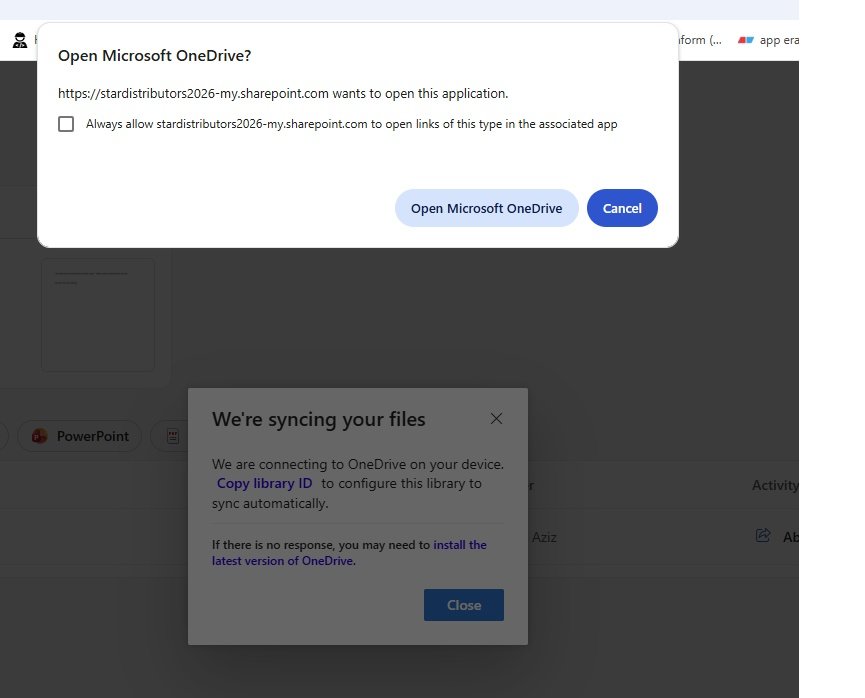
- We're syncing your files, Enter credentials.
- It will connect onedrive to your PC, configure to sync automatically.
- Onedrive will be added to your PC, check in explorer.
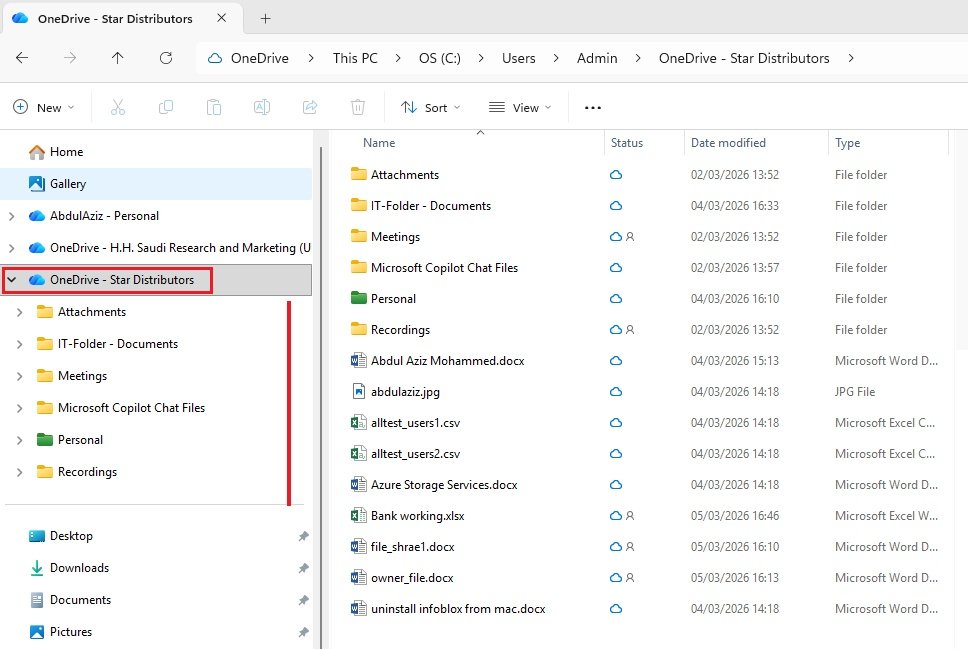
- Check onedrive online: It will have same folders/files.
Themes:
- Select the theme of your onedrive.
Language and time zone:
- Change language, It will redirect to my account and you can set language, time zone etc.
- Dark Mode: change mode to light or dark.
- Password: change your password
Home:
- It uses AI and display the recent access files
- Displays the list of documents you used recently or some one has shared documents with you.
- The documents which you access or modified will be displayed on home.
My Files:
- It is document library where it shows list of all your documents.
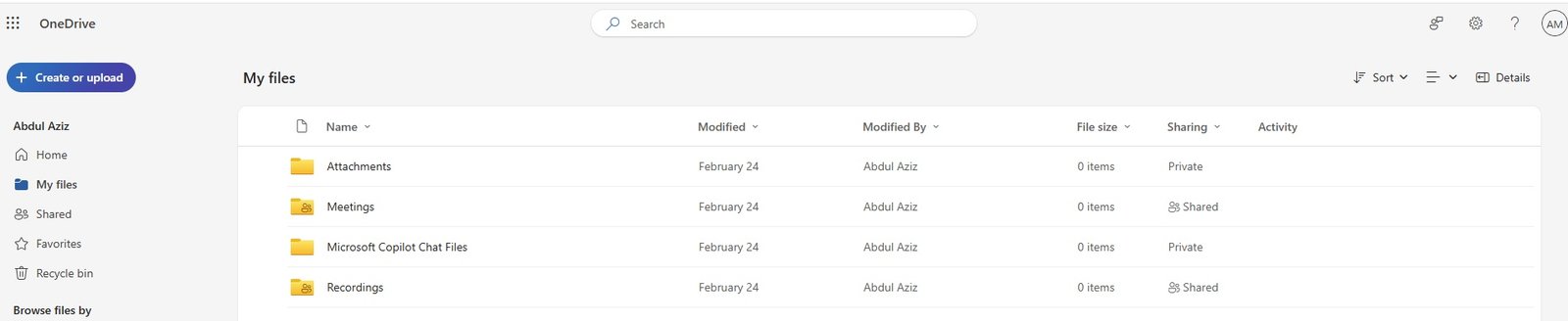
- Create or upload:
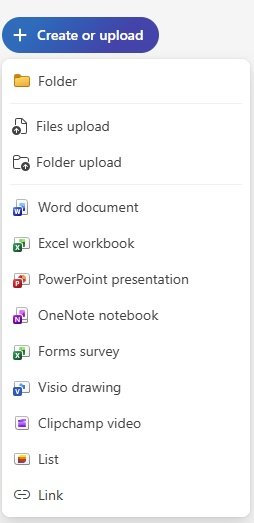
- you can copy and paste from pc or drag and drop or upload the files.
- You can create a folder in onedrive. enter name and select the color of the folder.
- Files uploaded: browse the file in local computer and upload.
- Folder uploaded: browse the folder in local computer and upload.
- Create a new word, excel, etc files in onedrive.
- Sort: you can sort the files with Type, Name, Modified, Modified By, File size, Ascending, descending order.
- View: List, Compact List or Tiles.
- Details: if you select any file or folder and click details will show details.
- Name: Name of file/folder.
- Modified and Modified by: Modified is the date when last it was modified, Modified by is refer to who modified the file, it shows the name of user who you share with and that user made changes.
- sharing:
- private = click on private, This file has not been shared with anyone yet. Owner, Groups and Links with show details.
- Shared = You shared the file with someone.
- Activity: In Activity it shows who you shared the document.
- Files & Folder configuration:
- Folder: Right click on folder or click three dots:
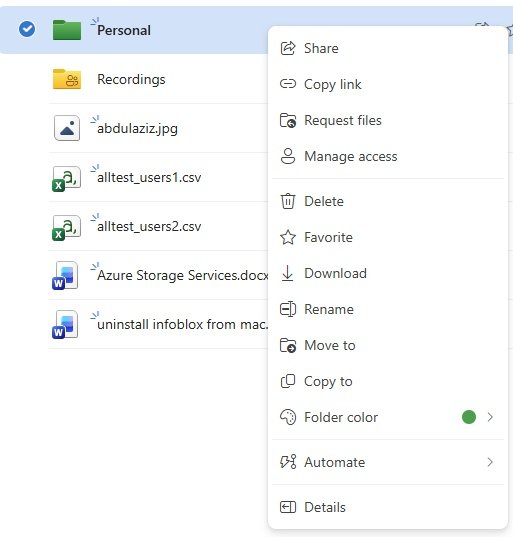
- Share:
- Copy Link:
- Request files:
- Manage access:
- Delete:
- Favorite: when you click it will show in favorites in left menu.
- Download: It download a copy.
- Rename:
- Move to:
- Copy to:
- Folder color: change color of folder. folders are created on onedrive's color can be change.
- Automate:
- Details: It will show details of this folder.
- File: Right click on file or click three dots:
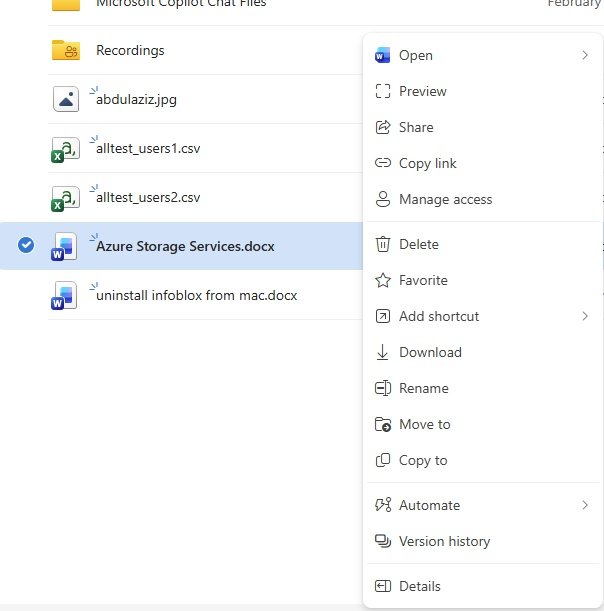
- All files will be open in browser.
- All new word file will be open as Document, click on it and change name. There is no save button and it will saved automatically.

- By default menu is Single Line Ribbon, click the ribbon display option that is arrow on the right corner and select classic ribbon and choose show always ribbin for more menu items.

- Open : It gives the options
- Open in browser: open word file online in browser. User must have a valid license.
- Open in app: Open word in desktop app in PC. User must have a valid license.
- Open in Immersive Reader: open text only with large fonts. Microsoft Immersive Reader is a free, built-in tool in Microsoft 365 (Word, Edge, OneNote, Teams) designed to improve reading comprehension and fluency for all ages and abilities. It enhances focus by removing distractions, offering text-to-speech, custom fonts, spacing, color themes, syllables, and grammar tools to support dyslexia and language learners.
- Share:
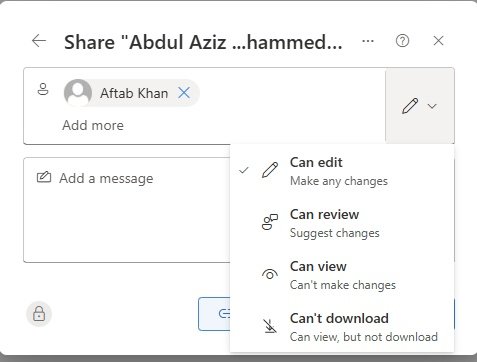
- Share a file with other user: click share and enter name, group or email, click on permissions and choose. copy link and click gear icon to choose options.
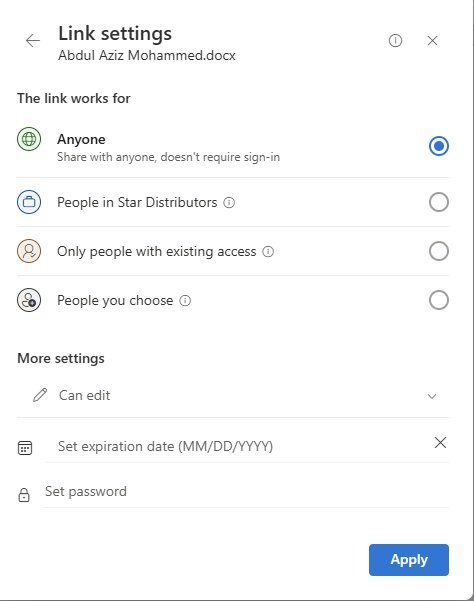
- copied link send with email so that user can access.
- Outlook: click three dots and click send link in Outlook, it will open outlook and a link of file is attached.
- Embedded sharing: If you want to send file in embedded form not a long link-->click share-->click gear icon and assign permission-->copy link -->click three dots-->send link in Outlook--> paste the link
- Copy Link:
- Request files:
- Manage access:
- Collaborating a file with other users.
- you can manage the permission of other users from here.
- Delete:
- Favorite: when you click it will show in favorites in left menu.
- Download: It download a copy.
- Rename:
- Move to:
- Copy to:
- Automate:
- Version History:
- It will show the version 1.0, 2.0, 3.0
- Modified date and time and modified By.
- Restore to old version: click on three dots and choose which version you need to restore, It will create a new version and data will be copied of selected version. You can open the file in that verion as well which will download the file.
- Older version will not open directly in the browser. Older version will always download and current version will open directly in the browser.
- You can delete any selected version.
- To check the track of version, click file and click versions history.
- Details: It will show details of this folder.
- Code
- Code
Shared:
- With you: Files shared with you by someone
- By you: Files you shared
- Share a file with other user: click share and enter name, group or email, click on permissions and choose. copy link and click gear icon to choose options.
- copied link send with email so that user can access.
- Outlook: click three dots and click send link in Outlook, it will open outlook and a link of file is attached.
- Embedded sharing: If you want to send file in embedded form not a long link-->click share-->click gear icon and assign permission-->copy link -->click three dots-->send link in Outlook--> paste the link
- Collaboration/Co-authoring:
- User1 shared a excel file with User2 with some data on sheet.
- User2 access the file and make some entry, it will show who makes the entry.
- both users are working on same sheet.
- This is called co-authoring.
Favorites:
- For easy and frequest access you can select files and will show in favorites.
- Go to file/folder and cick favorite.
Recycle Bin:
- Any deleted files will stay here for 30 days retention period for personal accounts and 93 days for work or school account. which can be restored within this time.
- If recycle bin is full, the oldest items are removed aftr three days.
- Personal Accounts:Files are kept for 30 days.
- Work/School Accounts: Files are kept for 93 days in the user's recycle bin.
- Two-Stage Process: Items deleted from the user's recycle bin move to a second-stage, admin-accessible recycle bin, with a total combined retention of 93 days.
- Retention Policies: If a Microsoft 365 retention policy is active, deleted files may be preserved in a hidden library even if removed from the recycle bin.
- Unlicensed Users: When a user is deleted (but not the OneDrive data itself), the content is retained for 30 days by default.
- Administrators can configure different retention periods for work or school accounts.
Browse files by:
- People
- Meetings
- Media
- Quick Access
Windows PC File Explorer:
- click on OneDrive from system tray icon or search for onedrive.
- Enter credentials and MFA.
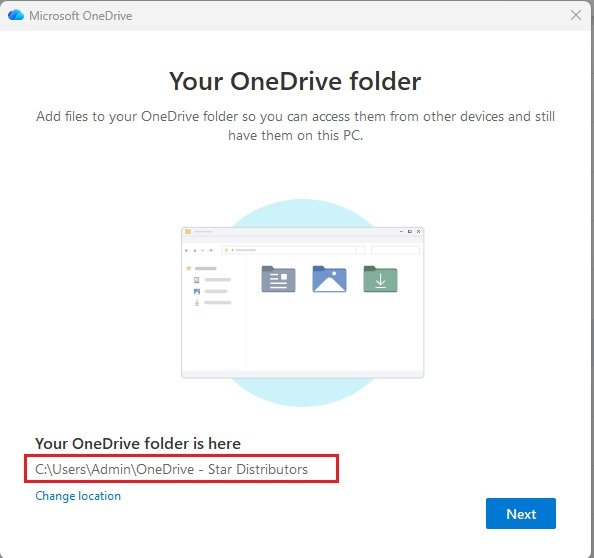
- If one drive is already access earlier,
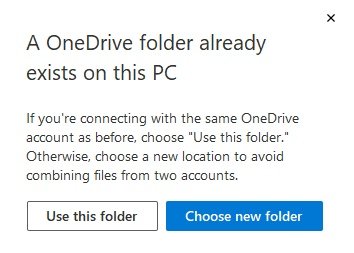
- If you choose Use this folder then it will create one more onedrive in the same location.
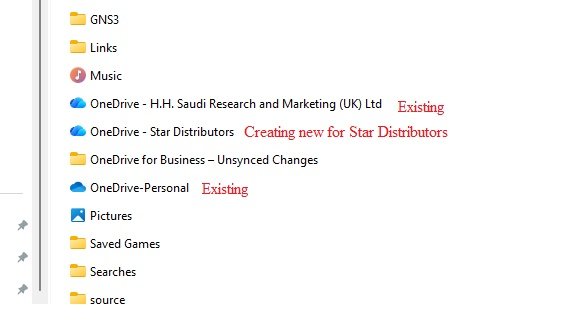
- Backup Folders on this PC: Files will be backd up, protected and available anywhere in OneDrive - Star Distributors, even if you lose this device.
- Documents: On/Off
- Pictures : On/Off
- Desktop: On/Off
- To add items, drag or move them into the OneDrive Folder. click next
- Share files and folders: To let other people view or edit your files, you can share them. You can also work on folders shared with you, click next.
- All your files, ready and on-demand.
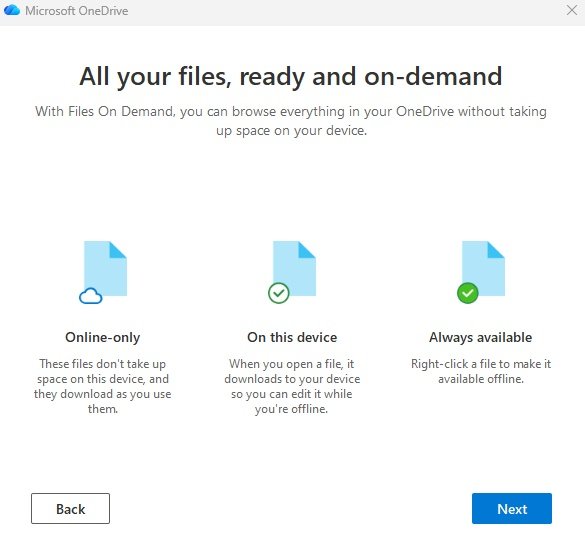
- Get the mobile app: To work on your files on the go, use OneDrive on your phone or tablet. Available for iOS and Android. click Get the mobile app if needed.
- Open my OneDrive folder.
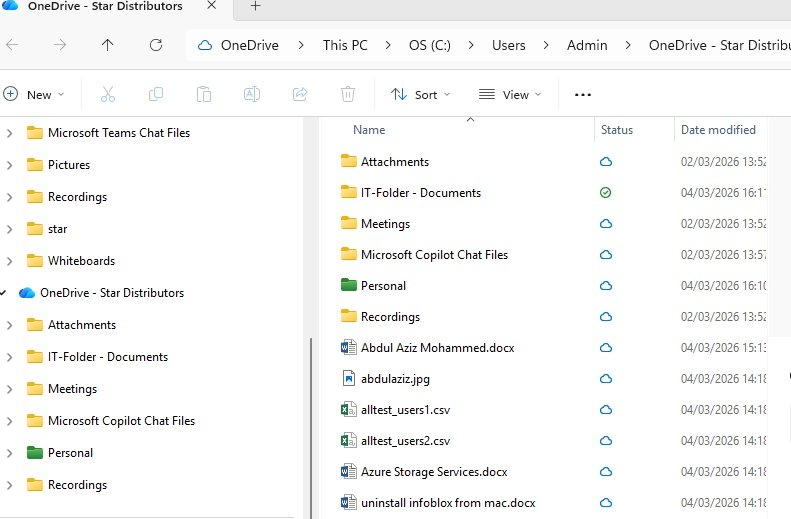
Mac computer:
Syncing, Sync and backup
OneDrive to your computer
- Syncing the files from OneDrive to your computer.
- Go to Settings (Gear icon) and click Sync this OneDrive.
- We're syncing your files: you can close this dialog and your files will continue to sync in the background. If there is no response, you may need to install the lastest version of OneDrive.
- All files and folders will sync with your local computer onedrive.
- I have created one excel file online. now click on sync this OneDrive and it will sync with my pc and copy that excel file.
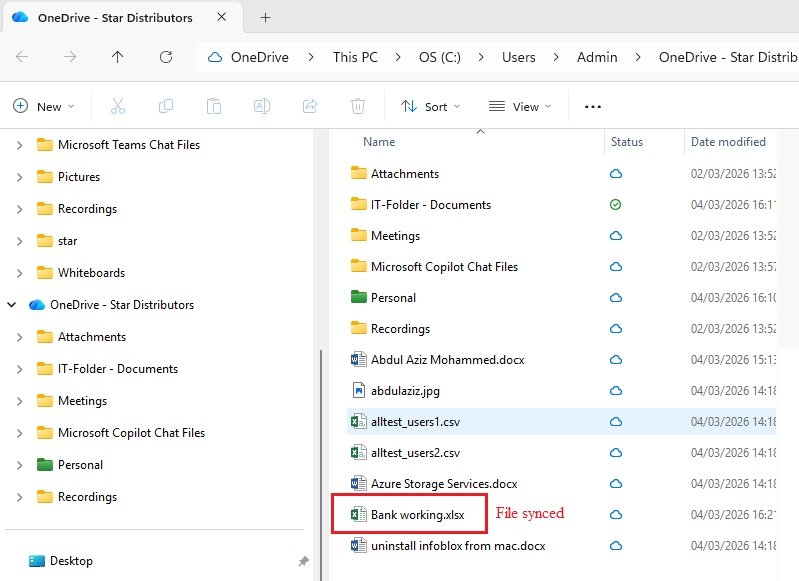
- You upload files/folder from PC to OneDrive and you perform OnceDrive sync for OneDrive to PC.
File are sync with PC
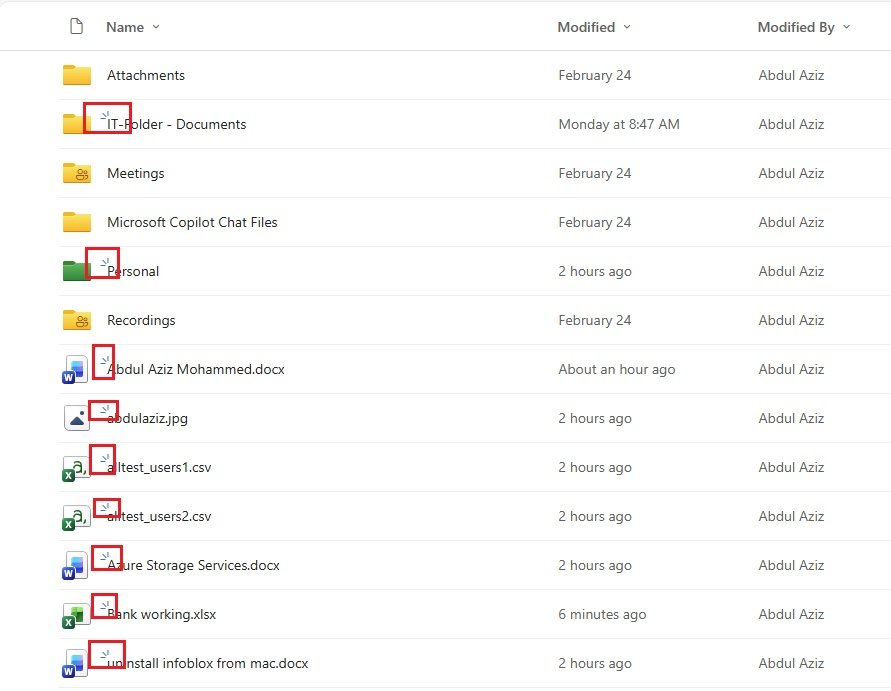
- The blue lines indicate that file/folder are new. When you create a new folder/file online or on pc then it appears.
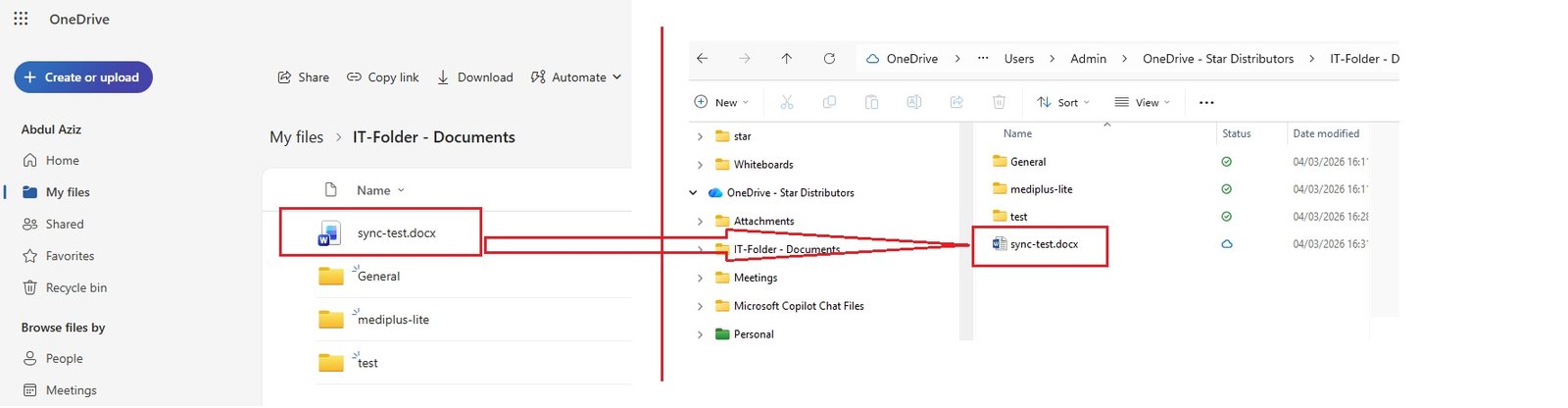
- A file is created sync-test.docx on onedrive and it sync and automatically update on pc.
Sync and backup
- Sync and backup is different than Synching.
- click on onedrive icon on system tray and open onedrive and click setting (gear icon).
- Backup important PC folders to OneDrive: Backup your Desktop, Documents, and Pictures folders to OneDrive, so they're protected ad avilable on other devices. click Manage backup
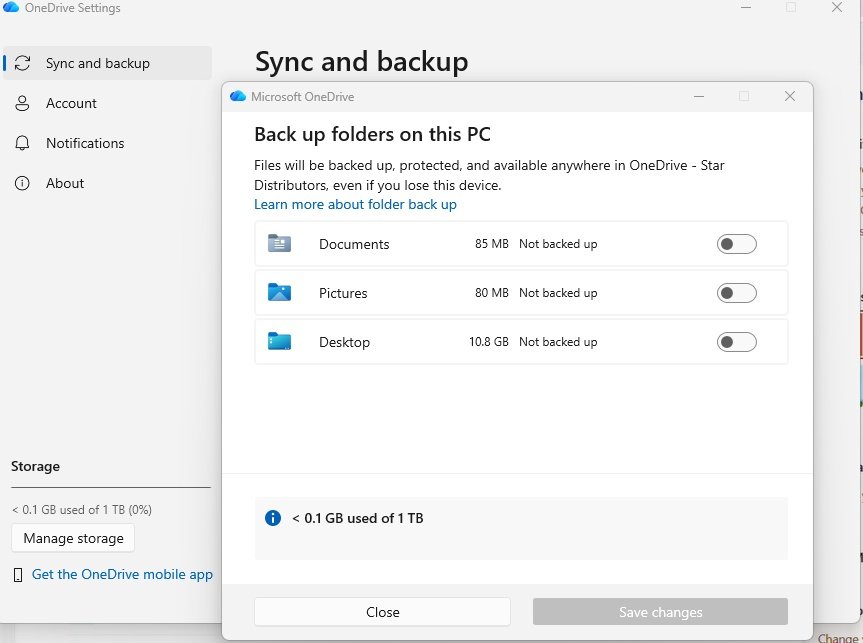
- You can enable if you need to take backup of these folders. Disable backup of any folder which you do not want.
- Preferences:
- Star OneDrive when I sign in to Windows: On/Off
- Pause syncing when this device is on metered network: On/Off
- Advanced settings:
- Storage:
Three blue radiant lines
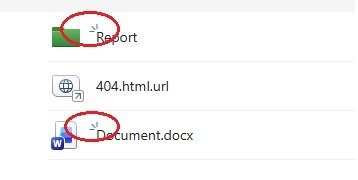
- I have three blue lines radiating left from the first letter of the uploaded folders or filename. It shows only to online folder/files.
- The glimmer marks (three little blue lines) seen next to a file or folder indiciates that the file is new. You'll see this only when using OneDrive online.
- When you create a new folder/file online or on your pc then these marks appear on online folder/files.
code
code
code
4
code
code
code
code
code
code
code
5
code
code
code
code
code
code
code
6
code
code
code
code
code
code
code
OneDrive Security
Data Encryption
- In-Transit Encryption: Data is encrypted during transfer between your device and Microsoft's servers using SSL (Secure Socket Layer)/TLS protocols.
- At-Rest Encryption: Data stored on OneDrive servers is encrypted usign AES 256-bit encryption.
- code
Access Control
- MFA: Adds an extra layer of security by requiring a second form of verification, such as phone call, authenticator app, text.
- code
- code
Compliance
Threat protection
- Data is protected from Malware, spyware, trojon, ransomware attack.
- code
- code
Administrative controls
- IT administrators can implement security policies.
- code
- code
code
code
8
code
code
code
code
code
code
code
9
code
code
code
code
code
code
code