Microsoft Defender XDR and its components:
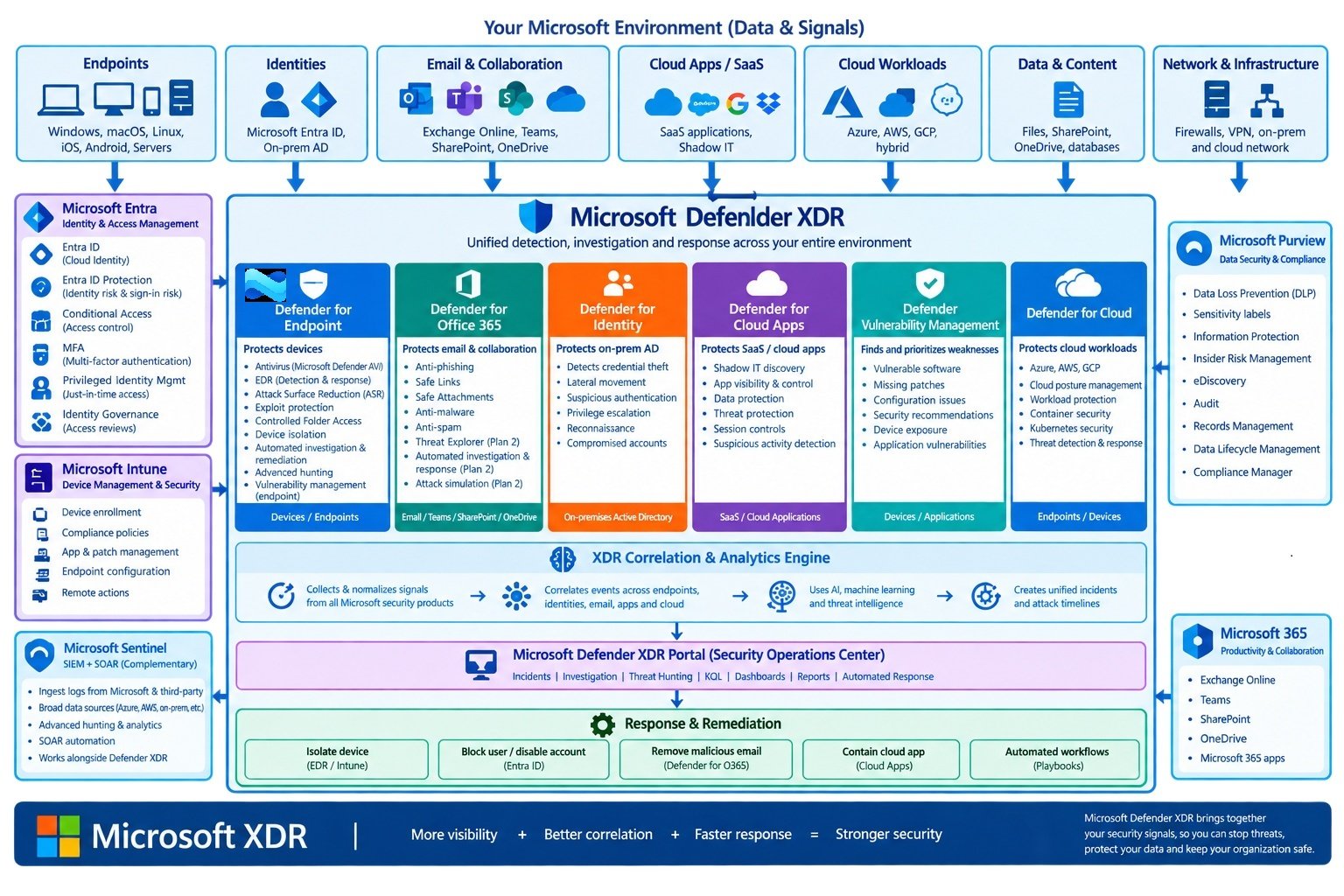
What is Defender XDR Suite (Extended Detection and Response)
- Microsoft Defender XDR is a unified pre- and post-breach enterprise defense suite that It brings security signals from endpoints, identities, email, collaboration, and cloud applications into one security operation experience, where incidents can be correlated, investigated, hunted, and automatically remediated.
- Microsoft Defender XDR helps security teams protect their organizations and detect threats by using information from other Microsoft security products, including:
- https://learn.microsoft.com/en-us/defender-xdr/microsoft-365-defender
- It is like a centralised location where it integrates and correlates data from different security tools like MDE, MDO, MDI, MDCA and other security sources acroos organization.
- It works beyond EDR (Endpoint detection & response) and NDR (Network detection & response).
- It gives more visibility and control to deal any threats.
- It can automatically detects, stops and remediates affected assests.
- It performs detection, investigation, prevention and response
- Example of phishing attach:
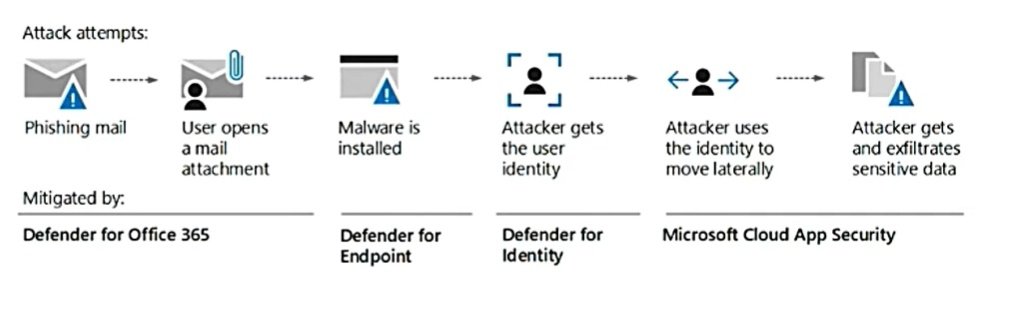
- Imagine that an employee gets a fishing email and it has a malicious attachment. User doesn't and open the mail attachments so there is a malware which gets installed.
It gets the user identity and then the attacker uses that identity to access other devices assets and get more sensitive information they start to exfiltrate.
If there is Defender Suite installed, all the services provided by Defender we that is Defender for Office 365 Defender for Endpoint, Defender for identity and Microsoft Defender for cloud apps.
There is exchange online protection is part of MDO (Microsoft Defender for Office 365) so exchange online protection can detect the fishing email and once it detects the fishing email it uses flow rules these are also called as transport rules, these rules are used to make sure that the fishing email never even goes to the inbox of that employee and then Microsoft Defender for office uses something called as safe attachments in MDO which will test these attachments and determine that it is harmful or not not based on rules has been setup. Then there is MDE (Microsoft Defender for Endpoints) which detects the device and network vulnerabilities, next there is MDI (Microsoft Defender for identity)this gets to know things like privilege escalation or if there is any lateral movement that is happening or any weakness related to user identity, then there is MDCA (Microsoft Defender for cloud apps) this usually notices anomalous behaviour like impossible travel request that means suppose say I am in the US I'm trying to log in maybe within 5 minutes or 10 minutes there is another login with my user ID from different location and so that is an impossible travel so it will alert.
Identify anomalous activities like unusual download you know sharing sensitive files mail forwarding activities all these can be identified using Microsoft Defender for cloud apps so this is how all the services that are provided by Microsoft 365 Defender act when there is an attack.
-
Component Protects Main purpose Defender for Endpoint PCs, laptops, servers, mobile/endpoints Endpoint protection + EDR Defender for Office 365 Exchange Online, Teams, SharePoint, OneDrive Phishing, malware, malicious links/files Defender for Identity On-prem AD Detect compromised identities and attacks against AD Defender for Cloud Apps SaaS/cloud applications Shadow IT, SaaS threats, cloud data/activity Defender Vulnerability Management Devices/software Vulnerability and exposure management Microsoft Entra ID Protection Entra identities/sign-ins Identity risk and risky sign-in detection Microsoft Security Exposure Management Attack surface Security exposure/risk visibility Defender for Cloud Azure/multicloud/hybrid resources Cloud workload security, Azure - Code
Microsoft Defender for Endpoint(Intune) - MDE (formerly ATP: Advance Threat Protection)
- Microsoft Defender for Endpoint is an enterprise endpoint security platform designed to help enterprises prevent, detect, investigate, and respond to advanced threats on their endpoints.
- It protectes:
- Windows PCs, Windows Servers, MacOS, Linux, iOS/Android endpoints, access points, routers, and firewalls.
- https://learn.microsoft.com/en-us/defender-endpoint/microsoft-defender-endpoint
- Defender for Endpoint is part of Microsoft Defender XDR and can be integrated with other Microsoft solutions, including: Intune, MDC, MDCA, MDI, MDO, MDVM, Sentinel
- (ATP) formerly called Microsoft Defender Adanced Threat Proteciton, now called MDE (Microsoft Defender for Endpoint)
- MDE is available in two plans:
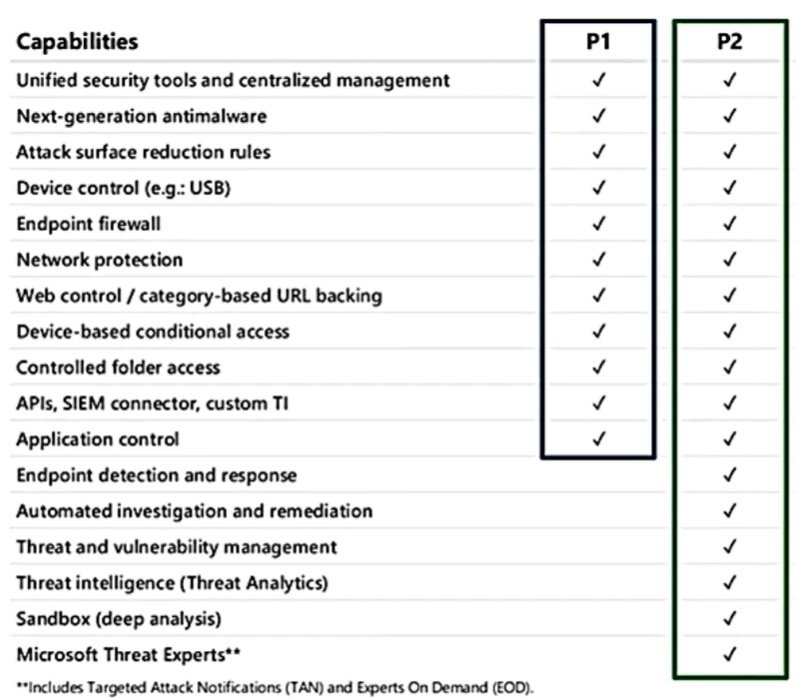
- P1 is available with Microsoft 365 E3 or A3 license
- P2 is available in E5 license.
- Endpoint behavioral sensors are built in windows 10/11, these sensors collect the behavorial signals/data from the O/S and sent it to MDE.
- MDE Capabilities:
- Microsoft Defender Antivirus
- Endpoint Detection and Response (EDR)
- Attack Surface Reduction (ASR)
- Exploit protection
- Controlled Folder Access
- Device isolation
- Automated investigation and remediation
- Advanced Hunting
- Threat & Vulnerability Management
Microsoft Defender for Office 365 (Emails & Collaborations)- MDO
- The built-in security features for all cloud mailboxes prevent broad, volume-based, known email attacks.
- Defender for Office 365 Plan 1 protects email and collaboration features from malware, phishing, and business email compromise.
- Defender for Office 365 Plan 2 adds phishing simulations, post-breach investigation, hunting, and response, and automation.
- It is cloud based email filtering service that helps to protect your organization against unknow threats and viruses.
- When you sign up for Office 365 tenant than exchange online protection start activated and start protecting from malicious contents and spam emails. It provides extra layer of security by scanning attachments and urls.
- https://learn.microsoft.com/en-us/defender-office-365/mdo-about
- Key technologies include:
- Anti-phishing
- Anti-malware
- Anti-spam
- Safe Links
- Safe Attachments
- Threat Explorer
- Automated investigation and response
- Attack simulation training
- Email entity investigation
- It protects:
- Exchange Online
- Outlook
- Microsoft Teams
- SharePoint
- OneDrive
- Against:
- Phishing
- Malware
- Business Email Compromise
- Malicious URLs
- Malicious attachments
- For configration go to Microsoft Defender: security.microsoft.com/Email & Collaboration (check in Defender portal section below)
Microsoft Defender for Identity - MDI
- Microsoft Defender for Identity helps organizations detect, investigate, and respond to identity-based attacks across on-premises, cloud, and hybrid environments. Attackers frequently target identities such as users, applications, and service accounts to gain access, escalate privileges, and maintain persistence.
- https://learn.microsoft.com/en-us/defender-for-identity/what-is
- It can detect things such as:
- Credential theft
- Lateral movement
- Suspicious authentication
- Privilege escalation
- Reconnaissance
- Compromised accounts
- Suspicious AD behaviour
- code
Microsoft Defender for Cloud Apps - MDCA
- Microsoft Defender for Cloud Apps delivers full protection for SaaS applications, helping you monitor and protect your cloud app data.
- https://learn.microsoft.com/en-us/defender-cloud-apps/what-is-defender-for-cloud-apps
- Users
│
├── Microsoft 365
├── Salesforce
├── Dropbox
├── Google Workspace
├── GitHub
└── Other SaaS
│
▼
Defender for Cloud Apps
│
┌────┴─--------------------─-──┐
▼ ▼
Shadow IT discovery Data/Threat monitoring - code
Microsoft Defender for Cloud - MDC
- Don't confuse this with Defender for Cloud Apps.
- It covers cloud workloads, posture management and workload protection.
- https://learn.microsoft.com/en-us/azure/defender-for-cloud/defender-for-cloud-introduction
- Defender for Cloud
│
┌────────────┼────────────┐
▼ ▼ ▼
Azure AWS GCP
│ │ │
└────────────┼────────────┘
▼
Cloud Security - code
Microsoft Defender Vulnerability Management
- Defender Vulnerability Management delivers asset visibility, intelligent assessments, and built-in remediation tools for Windows, macOS, Linux, Android, iOS, and network devices. Using Microsoft threat intelligence, breach likelihood predictions, business contexts, and devices assessments, Defender Vulnerability Management rapidly and continuously prioritizes the biggest vulnerabilities on your most critical assets and provides security recommendations to mitigate risk.
- https://learn.microsoft.com/en-us/defender-vulnerability-management/defender-vulnerability-management?tabs=preview-customers
- It looks at things such as:
- Vulnerable software
- Missing security updates
- Configuration weaknesses
- Security recommendations
- Device exposure
- Application vulnerabilities
- code
Microsoft Entra ID Protection
- Microsoft Entra ID Protection helps organizations detect, investigate, and remediate identity-based risks. These risks can be fed into tools like Conditional Access to make access decisions or sent to a security information and event management (SIEM) tool for further investigation and correlation.
- https://learn.microsoft.com/en-us/entra/id-protection/overview-identity-protection
- User: John
│
▼
Entra ID sign-in
│
├── Location
├── Device
├── IP reputation
├── Authentication
└── Behaviour
│
▼
Risk calculation
│
├── Low risk
├── Medium risk
└── High risk - code
Microsoft Data loss Prevention (DLP), Purview
Microsoft Purview Inisder Risk Management
Microsoft Security Exposure Management
- Code
- Code
Code
- Code
- code
Defender Licensing
- Microsoft Defender natively correlates Microsoft security products' signals, providing security operations teams a single pane of glass to detect, investigate, respond, and protect your assets. These signals are dependent on the license that you have and the access provisioned to you.
- Any of these licenses give you access to Microsoft Defender features via the Microsoft Defender portal (security.microsoft.com) without any additional cost:
- Microsoft 365 E5 or A5
- Microsoft 365 E3 with the Microsoft Defender Suite add-on
- Microsoft 365 E3 with the Enterprise Mobility + Security E5 add-on
- Microsoft 365 A3 with the Microsoft 365 A5 Security add-on
- Windows 10 Enterprise E5 or A5
- Windows 11 Enterprise E5 or A5
- Enterprise Mobility + Security (EMS) E5 or A5
- Office 365 E5 or A5
- Microsoft Defender for Endpoint
- Microsoft Defender for IoT - Enterprise IoT protection (includes protection for enterprise IoT devices with the Microsoft 365 E5 (ME5) or E5 Security license)
- Microsoft Defender for Identity
- Microsoft Defender for Cloud Apps or Cloud App Discovery
- Microsoft Defender for Office 365 (Plan 2)
- Microsoft 365 Business Premium
- Microsoft Defender for Business
- Check you defender license:
- Go to Microsoft 365 admin center (admin.microsoft.com) to view your existing licenses. In the admin center, go to Billing > Licenses.
- Required permissions:
- You must at least be a security administrator in Microsoft Entra ID to turn on Microsoft Defender.
- https://learn.microsoft.com/en-us/defender-xdr/m365d-permissions
- Code
Code
- Code
- Code
Defender admin portal
- Go to security.microsoft.com (Microsoft Defender)
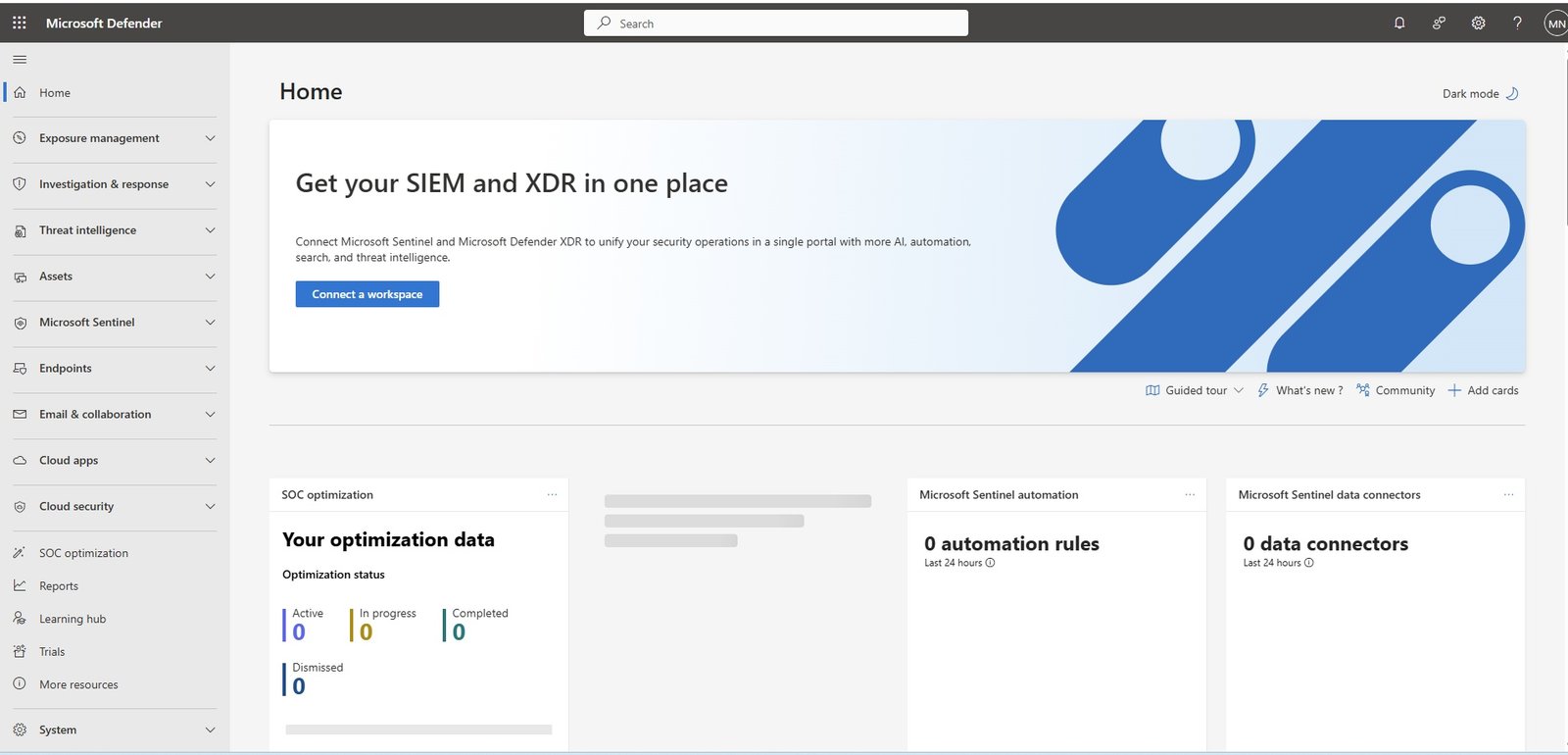
Exposure management
- Overview:
- Scan now
- Initiatives:
- Recommendations:
Attack surface:
- Map:
- Attach paths:
Secure Score:
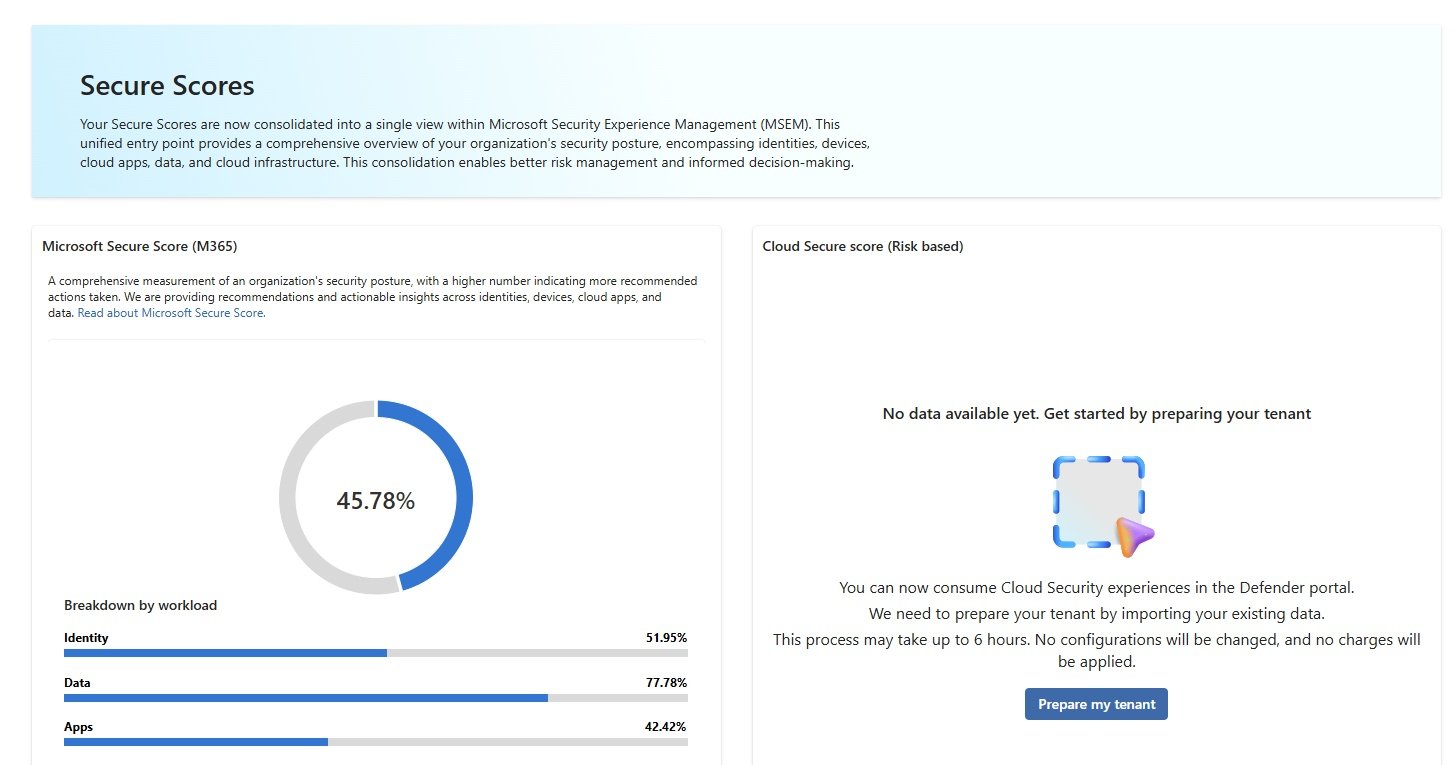
- Your Secure Scores are now consolidated into a single view within Microsoft Security Experience Management (MSEM). This unified entry point provides a comprehensive overview of your organization's security posture, encompassing identities, devices, cloud apps, data, and cloud infrastructure. This consolidation enables better risk management and informed decision-making.
Data connectors:
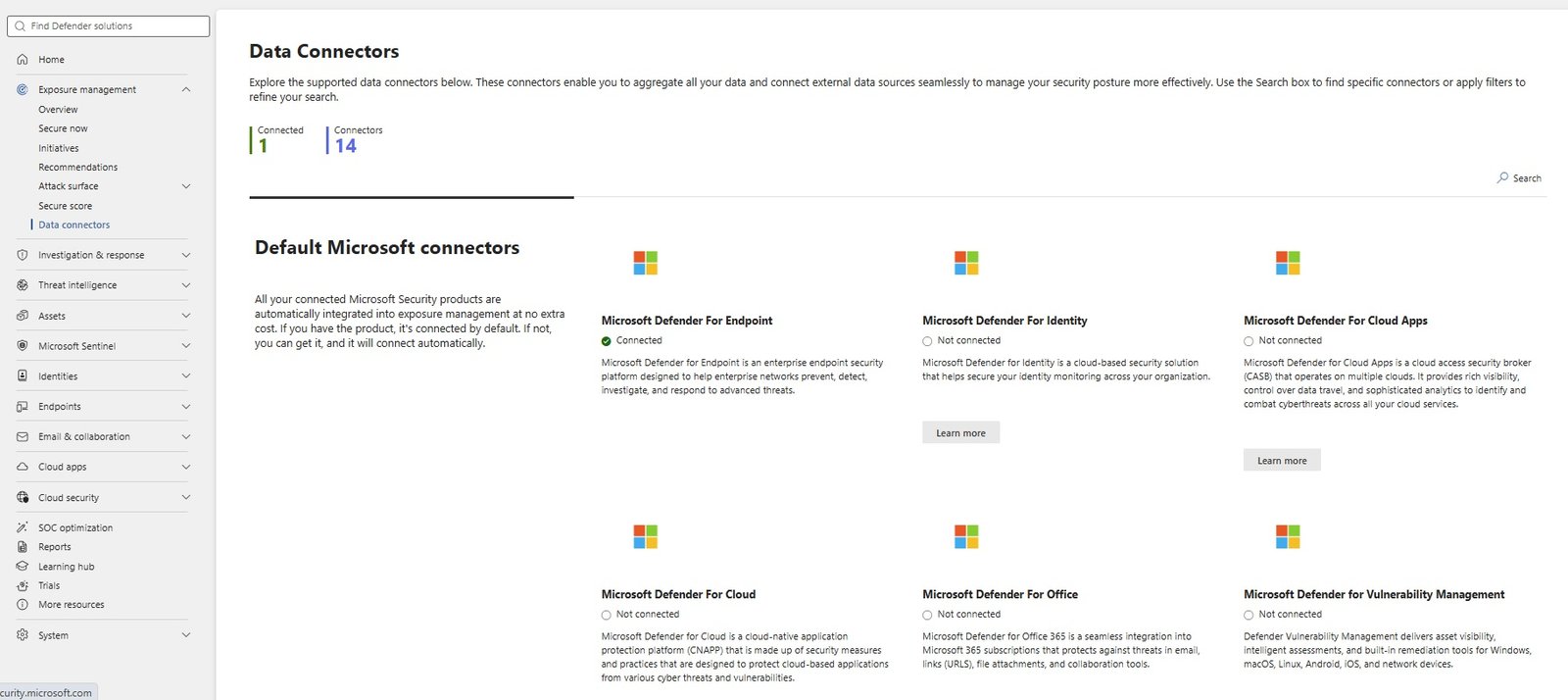
- Explore the supported data connectors below. These connectors enable you to aggregate all your data and connect external data sources seamlessly to manage your security posture more effectively. Use the Search box to find specific connectors or apply filters to refine your search.
- Code
Investigation & Response
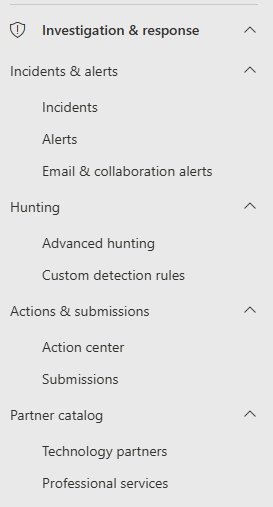
Incidents Alerts:
- Defender will create incidents and alerts if there is any like virus alert, security alert,
- Incidents:
- Alerts:
- Email Collaboration alerts:
Hunting
- Advanced hunting: Most usefull tool for generating reports, run query to get report
- Custom detection rules:
Actions & Submissions
- Action center: Any alerts and incidents are pending or view history.
- Submissions: To use this feature, turn on auditing so we can start recording user and admin activity in your organization. When you turn on auditing, activity is recorded in the audit log and is available to view in a report. Turn on Auditing. In the following categories you can submit to Microsoft for analysis.
- Emails:
- Email Attachments:
- URLs:
- Files
- User Reported:
Partner Catalog
- Technology partners:
- Professional services:
Threat intelligence
- Threat Analytics:
- Intel management:
Assets
Devices:
- Device Inventory: List of All devices / computers & Moblle onboard and offboard in Defender.
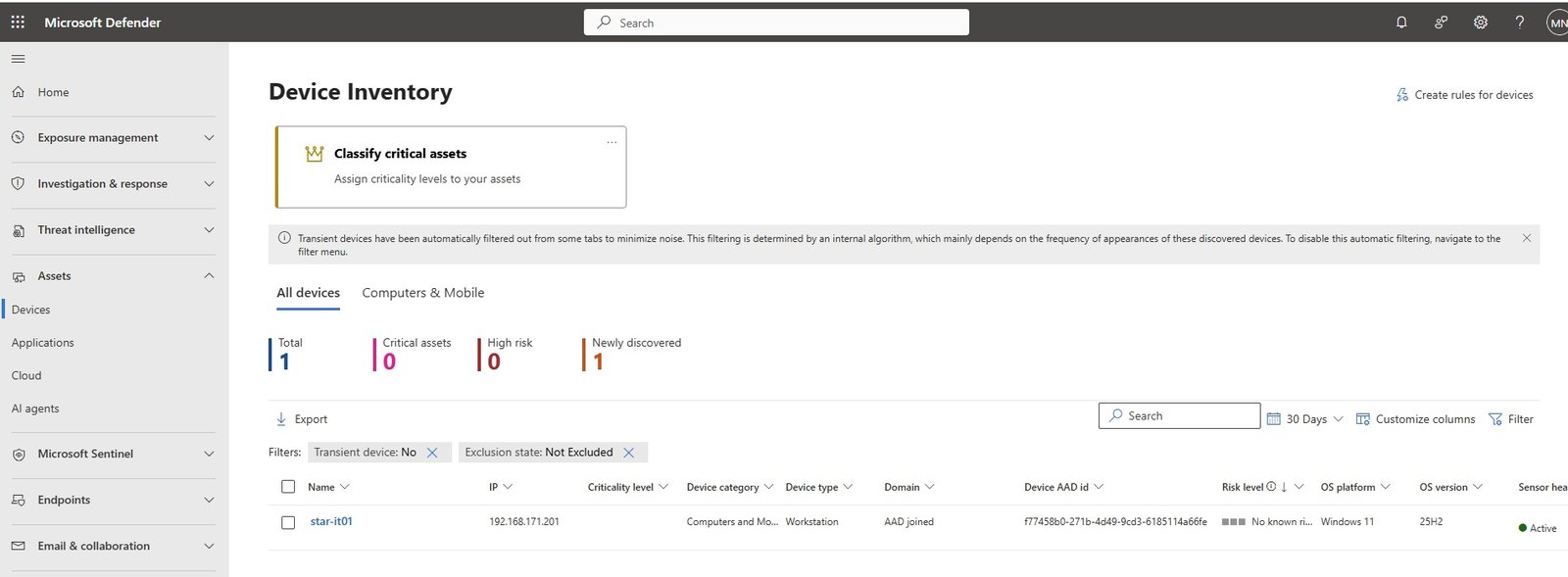
- click onboard device to get more details:
- Overview: Device overview
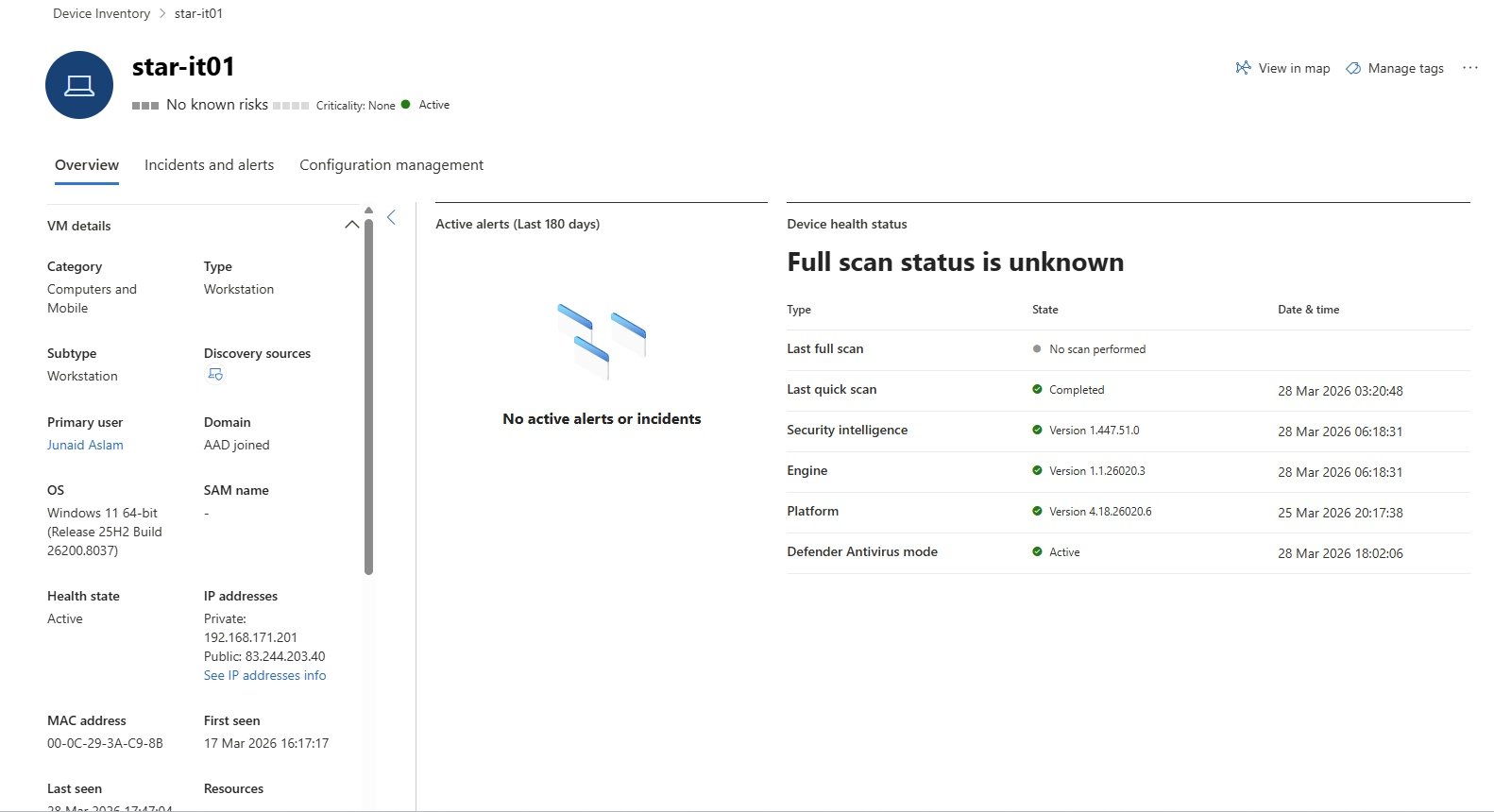
- click on three dots on top right corner to
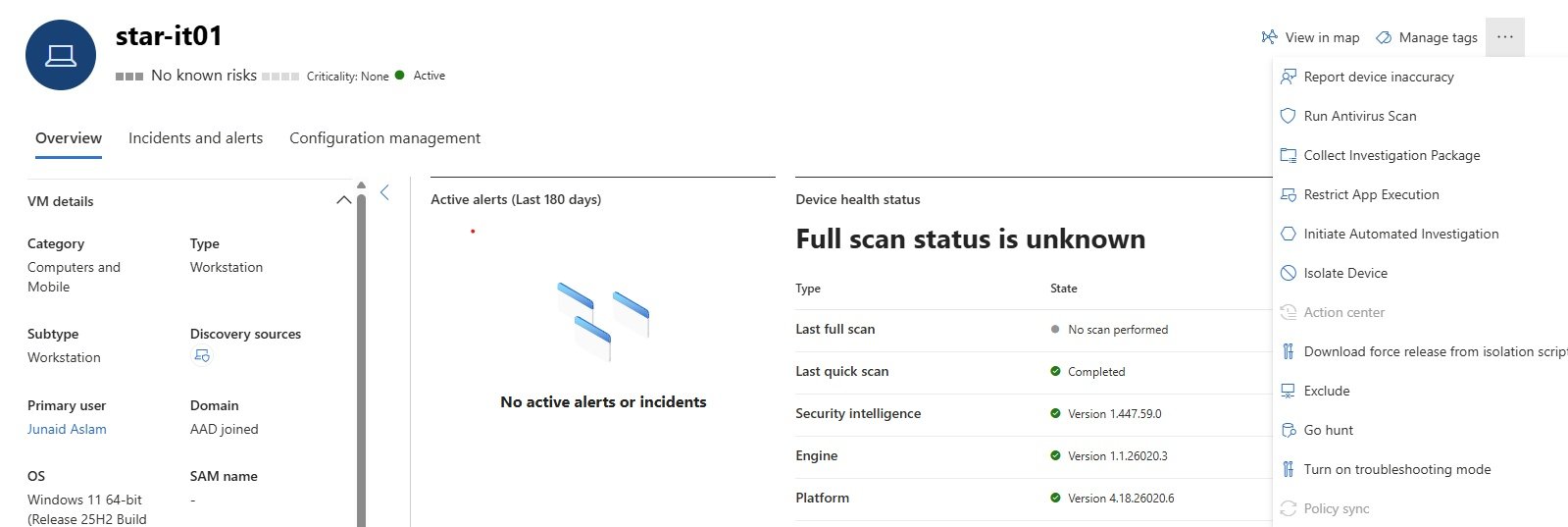
- View in map
- Manage tags
- Report dvie inaccuracy
- Run Antivirus Scan:
- This action will update Windows Defender Antivirus definitions and scan the device. Quick or Full Scan
- Collect investigation package
- Restrict App Execution
- Initiate Automated Investigation
- Isolate Device:
- This action will isolate the device from the network. It will remain connected to the Microsoft Defender for Endpoint service.
- Check box : Use isolation exclusion to allow specific communication while the device is isolated.
- Action center
- Download force release from isolation script
- Exclude
- Go hunt
- Turn on troubleshooting mode
- Policy sync:
- Incidents and alerts: Incident and reports related to onboarded device.
- configuration management: Applied security policies to device.
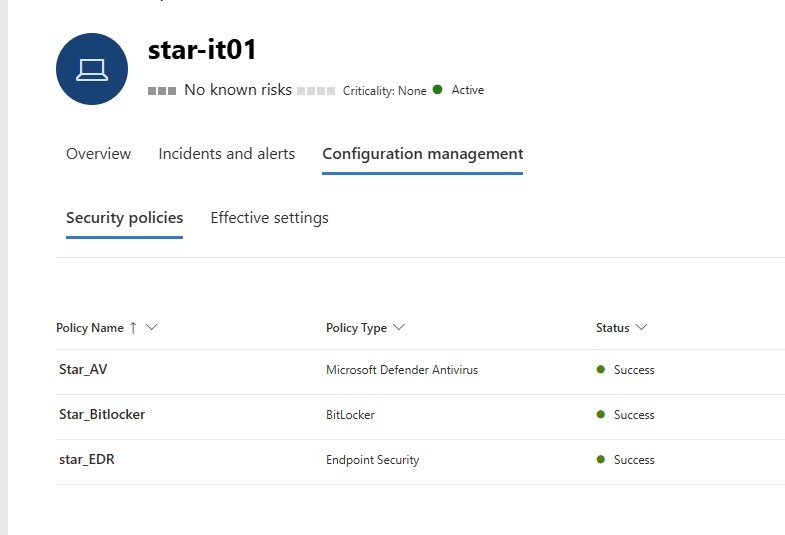
- Identities: Without required license, the Identities tab will not appear, even if other Defender components are active.
- Applications:
- Cloud:
- AI agents:
Microsoft Sentinel
- Search
Threat management
- Workbooks:
- SIEM workspaces
- Data lake
- Hunting:
- SIEM workspaces
- Data lake
- Notebooks:
- SIEM workspaces
- Data lake
- Threat intelligence:
- SIEM workspaces
- Data lake
- MITRE ATT&CK:
- SIEM workspaces
- Data lake
- Workbooks:
Content management
- Content Hub:
- SIEM workspaces
- Data lake
- Repositories:
- SIEM workspaces
- Data lake
- Community:
- SIEM workspaces
- Data lake
- Content Hub:
Configuration
>- Tables:
- Data connectors:
- SIEM workspaces
- Data lake
- Analytics:
- SIEM workspaces
- Data lake
- Summary rules:
- SIEM workspaces
- Data lake
- Watchlist:
- SIEM workspaces
- Data lake
- Automation
- Integrations profiles:
- Automation Rules:
- Playbooks:
Endpoints
Partners and APIs
- API explorer: Use the API explorer to test Microsoft Defender for Endpoint capabilities. Use the sample queries to get started.
- It is integration with other non microsoft products.
Configuration management
- Dashboard:
- Endpoint security policies
- Windows Policies:
- macOS policies:
- Linux policies:
- code
Email & collaboration - MDO
Investigations:
- Microsoft_Defender_for_O365.jpg
- Level up your email protection with Microsoft Defender for Office 365 - MDO Plan 2
- Allow you to try the features of Microsoft Defender for Office 365 Plan 2
Explorer:
- Level up your email protection with Microsoft Defender for Office 365 - MDO
- Need a license
Review:
- Quarantine:
- Restricted Entities:
Campaigns:
- Level up your email protection with Microsoft Defender for Office 365 - MDO
- Need a license
Threat tracker:
- Level up your email protection with Microsoft Defender for Office 365 - MDO
- Need a license
Exchange message trace:
- It will redirected to Exchange admin center. admin.cloud.microsoft to view message trace.
Attach simulation training:
- Youtube training
Policies & Rules:
Threat Policies:
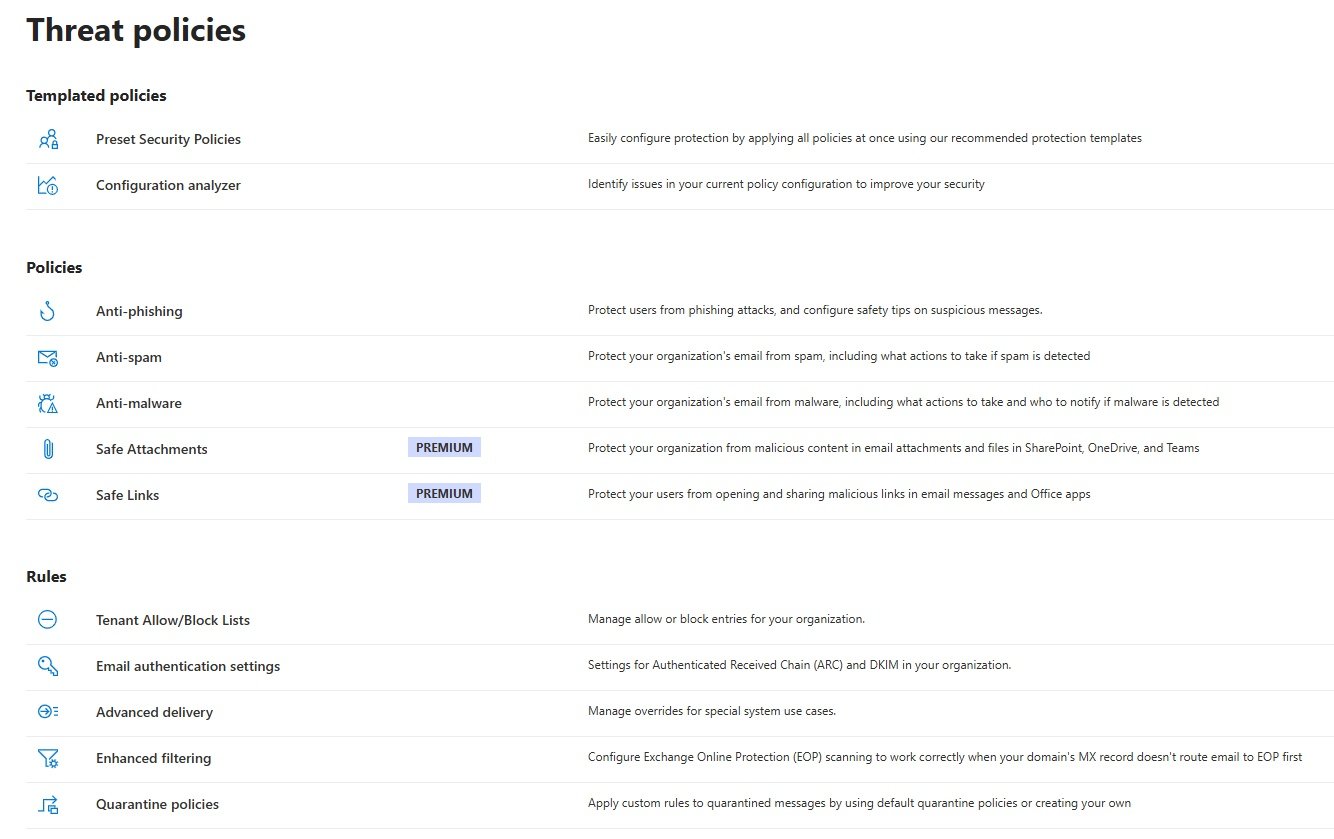
- Templated policies
- Preset Security Policies
- Configuration analyzer
- Policies
Anti-spam
- If email is going out from your organization then it will be scan from outbound spam filter policy. If it is inbound than it will be scan from inbound spam filter policy.
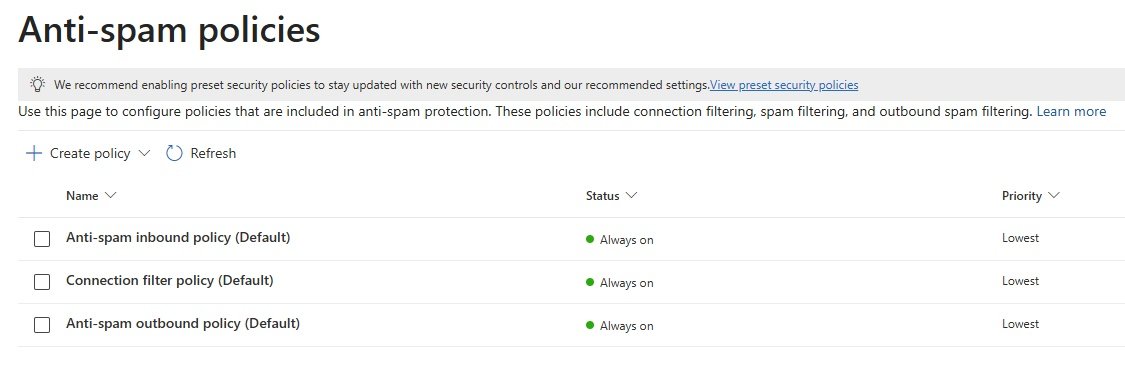
- There are three default anti spam policies which can be modified by administrator but cannot be deleted and disable.
- Create policy: choose inbound or outbound, custom policies takes precedence on default policy.
- Anti-spam inbound policy:
- Inbound:
- Name: star_Inbound_antispam_policy
- Description:
- Users, Groups, and domain: define these
- Define Bulk email threshold and spam properties. (on, off, test mode)
- Define action
- allow & block list
- Anti-spam outbound policy:
- outbound:
- Name: star_outbound_antispam_policy
- Description:
- Users, Groups, and domain: define these
- Define Bulk email threshold and spam properties. (on, off, test mode)
- Define action
- allow & block list
- connection filter policy:
- filter the emails within the exchange online protection.
- there will be only 1 connection filter policy and cannot create custom policy.
- As soon as an email reaches exchange online protection, it adds IP address in antispam report on the header. This IP address either allowed or disallowed list.
- secondly it checks Directory based edge blocking (DBEB), it checks recepient address are not available in the active directory then email will be dropped.
- safe list: Turn on safe list check box, it is maintained by microsoft data center, if sender is already in the safe list then that sender will be able to send email to your organization. Filtering will be skipped.
- reputation list: Microsoft maintain list of good or bad reputation ip address. sender can go to https://sender.office.com and white list the IP address.
Anti-malware
- Anti-malware engine: Microsoft offers in built anti malware protection to protect emails from malacious softwares.
- Anti-malware uses different anti virus engines to scan emails.
- It scans the emails for 3 major categories:
- Virus: Virus infect the programs and data of your computer or network
- spyware: It gathers your personal information like sign in details, personal data and it passes the data to author.
- ransomware: It encrypts your data and demans money to decrypt.
- If anti-malware detects the malware in your emails or attachments then it quarantine the email. only administrator can review and release the emails.
- In anti-malware we can block certain types of files and extesions. .exe .jar .app .bat .chm .asp .vbs .reg, If an email contain these files than it will be moved to quarantine.
- Policies modified by administrator but cannot be deleted and disable.
- Zero-hour Auto Purge (ZAP): If you enable than it can detect and quarantine malware which is reached to inbox.
- Notifications: you can specify notifiction to recepient, sender and admin.
- ATP : Advance Threat Protection (Anti-phising, Safe Attachments, Safe Links)
Anti-phishing
- Office365 AntiPhish Default (Default), policy can be modified by administrator but cannot be deleted and disable.
Safe Attachments
- Built in protection (Microsoft) is available: Built-in Microsoft Office 365 security applied to all users in your organization to protect against malicious links and attachments.
- Note: Built-in protection is enabled only for paid Microsoft Defender for Office 365 tenants.
- Create: Enter name & description of policy. (star-safe-attachment-policy)
- Add Users/Groups/Domains or exclude Users/Groups/Domains.
- Settings:
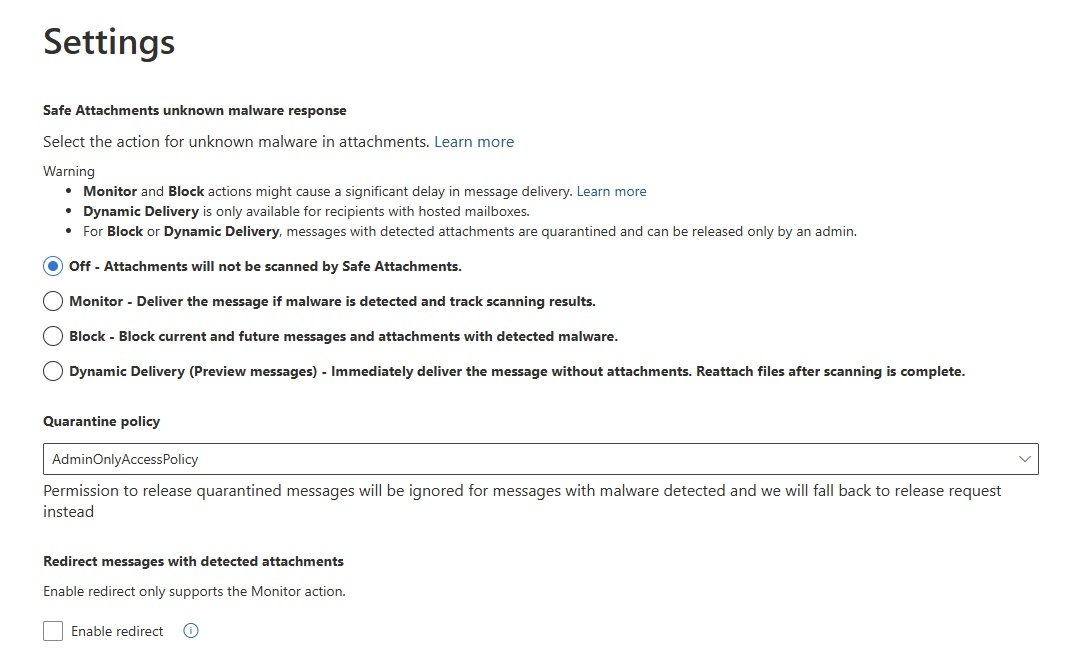
- Off-Attachments will not be scanned by safe attachments. No scan if you select off.
- Monitor -Deliver the message if malware is detected and track scanning results. email will be delivered and you will see all the logs related to malware.
- Block - Block current and future messages and attachments with deleted malware. Email will be blocked.
- Replace - Block attachments with deleted malware but deliver the message. Email will be delivered however the attachment will be blocked.
- Dynamic Delivery (Preview feature) - immediately deliver the message without attachments, Reattach files after scanning is complete.
- Quarantine policy:
- Default full access policy.
- Admin only access policy.
- DefaultFullAccesswithNotificationPolicy
- Permission to release quarantined messages will be ignored for messages with malware detected and we will fall back to release request instead
- Redirect messages with deleted attachments:
- Check box: Eable redirect.
- Send messges that contain blocked, monitored, or replaced attachments to the specified email address.
- Review and create.
Safe Links
-
Built-in Microsoft Office 365 security applied to all users in your organization to protect against malicious links and attachments.
-
Note: Built-in protection is enabled only for paid Microsoft Defender for Office 365 tenants.
- Create policy:
- Enter name and description: Star-safe links - policy
- Add Users/Groups/Domain:
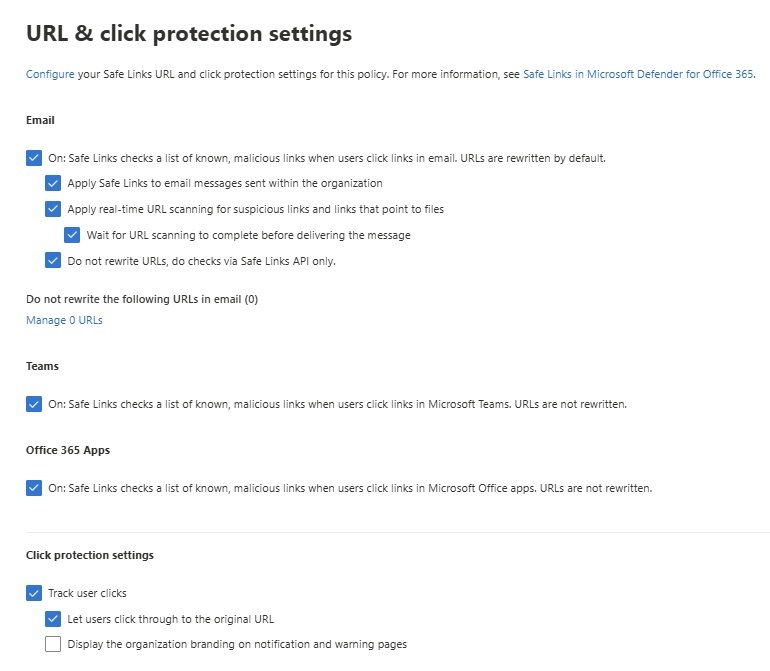
- Email:
- choose the required options.
- Review and create.
-
Rules
- Tenant Allow/Block Lists
- Email authentication settings
- Advanced delivery
- Enahanced filtering
- Quantine policies
- Others
- Evaluation mode
Alert policy:
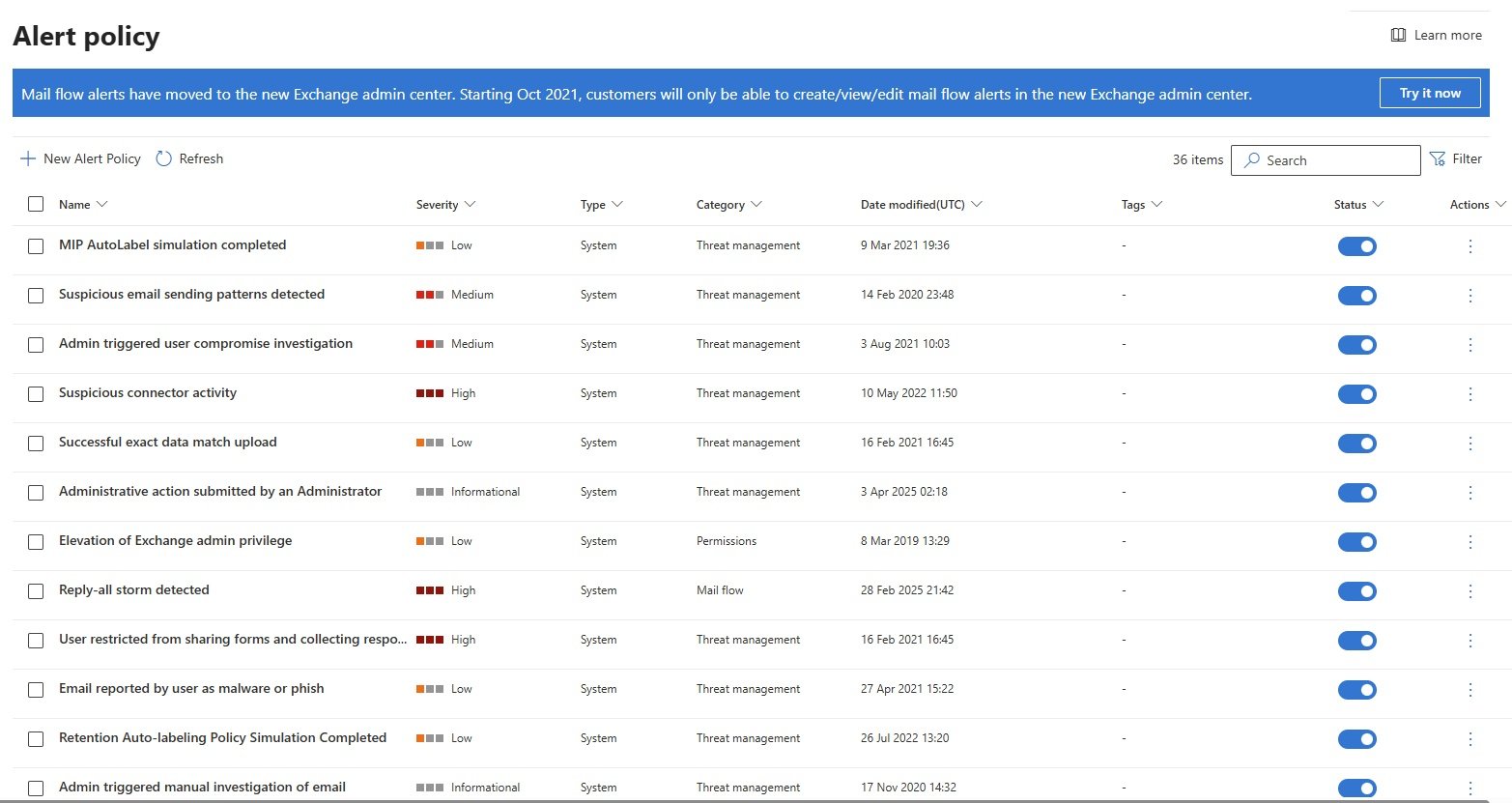
- New Alert Policy:
- List of policies
- New Alert policy
Cloud apps
- Cloud discovery:
- Cloud app catalog:
- Governance log:
- Policies
- Policy management:
- Policy templates:
- code
cloud security
- Overview
SOC Optimization, Reports, Learning hub, Trials, More resources
- SOC optimization:
- Reports:
- General
- Unified security summary:
- Query resources:
- Endoints
- Device health:
- Monthly security summary:
- Web protection:
- Firewall:
- Device control:
- Attack surface reduction rules:
- Email & collaboration
- Email & collaboration reports:
- Manage schedules:
- Reports for download:
- Exchange mail flow reorts:
- Cloud Apps
- Exported reports
- Learning hub:
- Trials:
- More resources
System
- Audit
- Data management
- Permissions
- Health
Settings
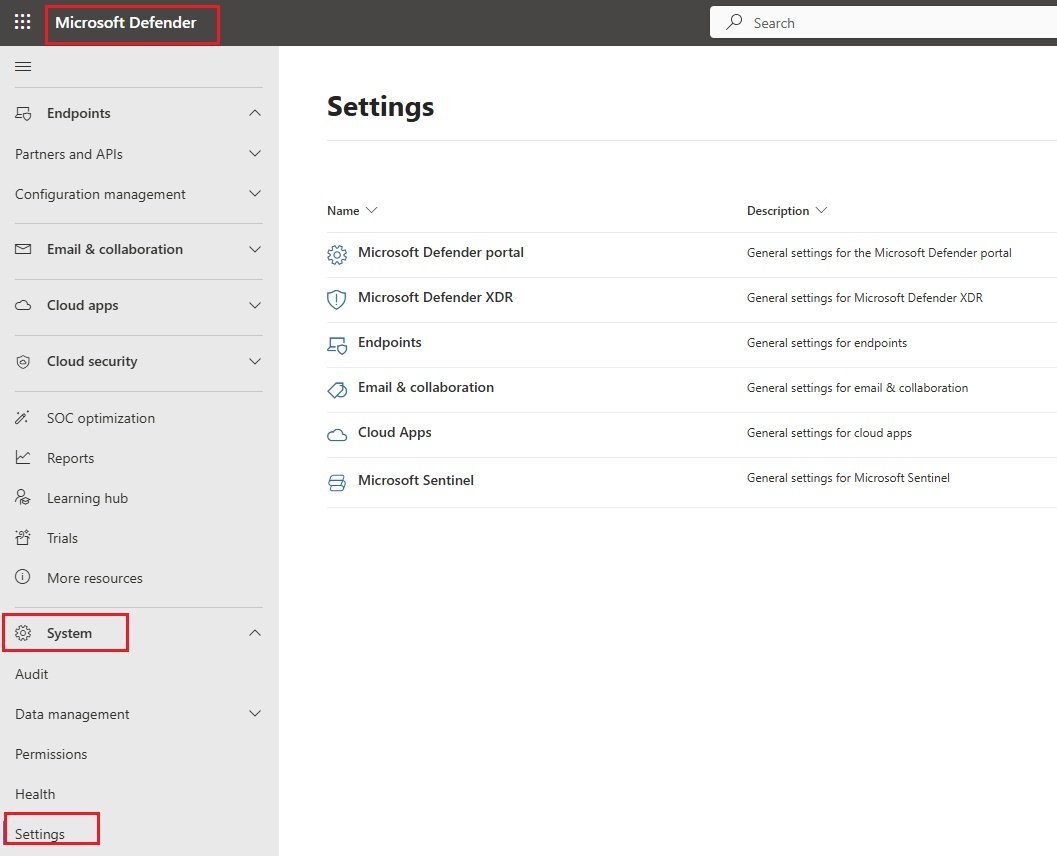
Microsoft Defender portal
- Set time zone for Microsoft Defender (UTC or Local UTC +00:00)
Microsoft Defender XDR
- Defender_XDR1.jpg
- General
- Account:
- Session details:
- Email Notifications:
- Preview features:
- Alert service settings:
- Permissions and roles:
- Streaming API:
- Rules
- Asset rule management:
- Alert tuning:
- Critical asset management:
- Service accounts classification:
- Automated response
- Identities:
- Devices:
Endpoints

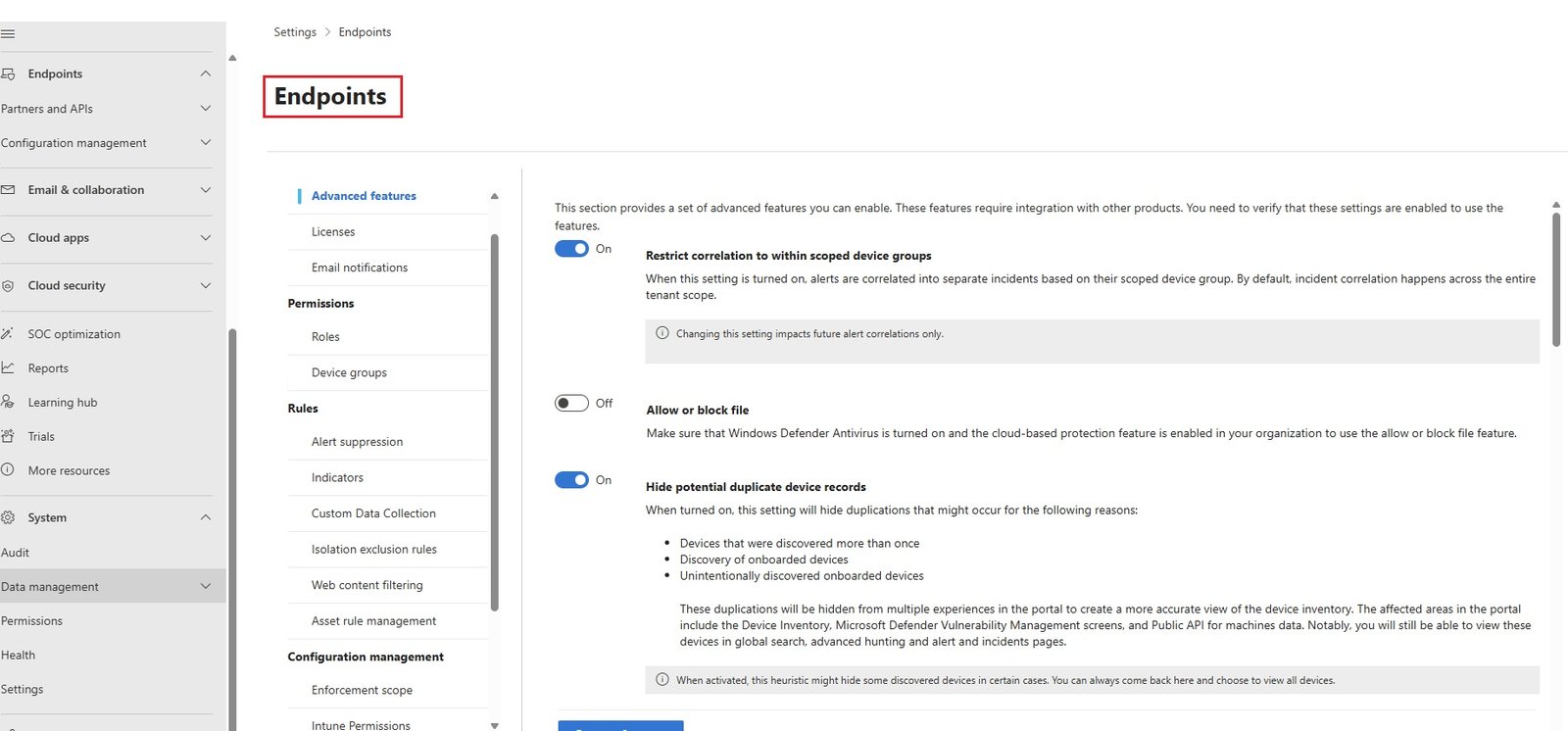
- General
- Optional features: This section provides a set of advanced features you can enable. These features require integration with other products. You need to verify that these settings are enabled to use the features.
- Restrict correlation to within scoped device groups: On/Off
- Allow or block file: On/Off
- There are two pre-requisites
- Antivirus should active anti malware solution
- cloud based protection should be enabled ( go to computer and search virus and threat protection -->virus & threat protection and click manage settings-->cloud-delivered protection is on)
- Hide potential duplicate device records: On/Off
- Custom network indicators: On/Off
- Tamper protection: On/Off
- Tamper protection is a feature in MDE that will protect certain security settings from being disabled or changed in cyber attacks.
Malicious actors attempt to deactivate security features like antivirus protection on your devices this is usually done to gain easier access to your data install malware or exploit your data identity and devices and tamper protection helps guard against these types of activities.
when tamper protection is turned on there are some tamper protected settings that cannot be changed like virus and threat protection remains enabled, real time protection remains turned on, behaviour monitoring remains turned on, antivirus protection remains enabled,Cloud protection remains enabled.
- Tamper protection is a feature in MDE that will protect certain security settings from being disabled or changed in cyber attacks.
- Show user details: On/Off
- Enables displaying user details.
- Skype for business integration: On/Off
- Microsoft Defender for Cloud Apps: On/Off
- Web content filtering: On/Off
- web content filtering so if you enable this feature you can block access to websites containing undesirable content and you can also monitor web activity across alldomains.
You can customize these policies to specify the categories of web content you wish to block. - Rules / Web Content Fileting: you can create the policies and add a policy, you can select what you want to block, select the web content categories to block there are different categories, adult content, gambling, block all adult content. High bandwidth download sites are blocked or I can select all again and you can also block legal liability content like hacking, illegal drugs and then there is Leisure mostly entertainment, social networking all this can be blocked.
- web content filtering so if you enable this feature you can block access to websites containing undesirable content and you can also monitor web activity across alldomains.
- Default to streamlined connectivity when onboarding devices in Defender portal: On/Off
- Apply streamlined connectivity settings to devices managed by Intune and Defender for Cloud: On/Off
- Aggregated Reporting: On/Off
- Isolation Exclusion Rules: On/Off
- Share endpoint alerts with Microsoft Compliance Center: On/Off
- Go to compliance.microsoft.com now retired and it redirects to purview.microsoft.com
- Microsoft Purview brings together solutions across data governance, data security, and compliance so that you can govern and secure your data wherever it lives.
- Microsoft Intune connection: On/Off
- Integration of MDE and Intune, required for onboarding endpoint devices.
- Connects to Microsoft Intune to enable sharing of device information and enhanced policy enforcement.
Intune provides additional information about managed devices for secure score. It can use risk information to enforce conditional access and other security policies.
- Authenticated telemetry: On/Off
- It will prevent spoofing telemetry into your dashboard.
- Preview features: On/Off
- new features can be viewed and experience.
- Licenses:
- Track and manage the availability and usage of your organization’s client licenses. Learn more about Microsoft Defender for Endpoint plans
- Email notifications:
- Create rules that determine the devices and alert severities to send email notifications for and the notification recipients. For guidance, read Configuring email notifications.
- Permissions
- Roles:
- Device groups:
- Rules
- Alert suppression: It is moved to Microsoft Defender XDR settings.
- Indicators:
- File hashes:
- IP Addresses
- URLs/Domains:
- Certificates:
- Custom Data Collection:
- Isolation exclusion rules: Define specific IP addresses, process paths, or services that remain accessible when a device is isolated, enabling uninterrupted investigations while maintaining device protection.
- Web Content filtering:
- you can create the policies and add a policy, you can select what you want to block, select the web content categories to block there are different categories, adult content, gambling, block all adult content. High bandwidth download sites are blocked or I can select all again and you can also block legal liability content like hacking, illegal drugs and then there is Leisure mostly entertainment, social networking all this can be blocked.
- Asset rule management:
- Asset rule management: Asset rule management is now located in M365 Settings, You can create rules for different assets and decide which action to apply to them.
- Configuration management
- Enforcement scope:
- Intune Permissions:
- Device Management
Onboarding Devices to MDE (Microsoft Defender for Endpoint)
Windows 10 and 11 with script <10 devices
- Prerequisites:
- Valid License
- All the Microsoft Defender Servcie Endpoint URL must be accessible from the device.
- Process:
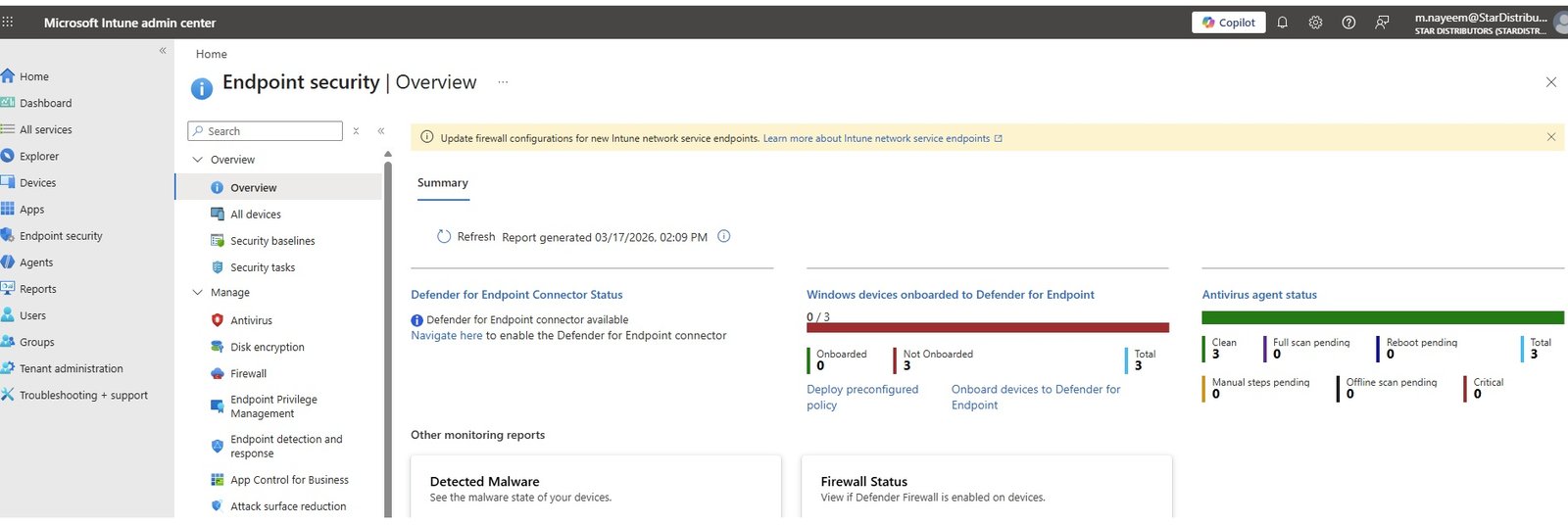
- To get the list of onboarding/Not onboarding: Go to Intune admin center/Endpoint security.
- Go to security.microsoft.com/System/Settings/Endpoints/Device management and click onboarding. (Defender admin portal)
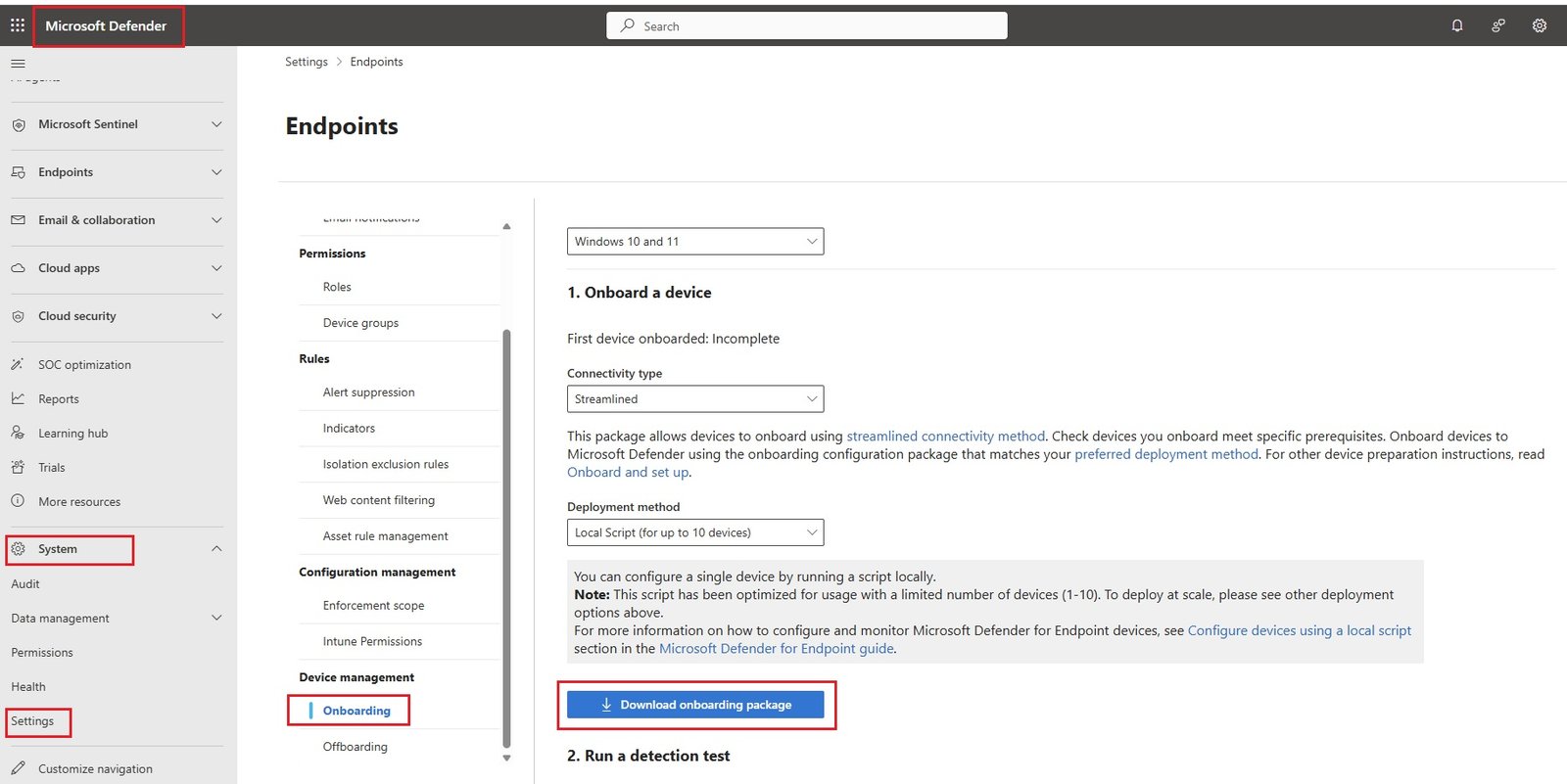
- click Download onboard package: Select O/S = Windows 10 and 11, local script. Copy the package in the desired onboarding machine. extract and run.
- Run the script on the devices which needs to be onboard.
- Go to location where it was extrated and run as administrator.
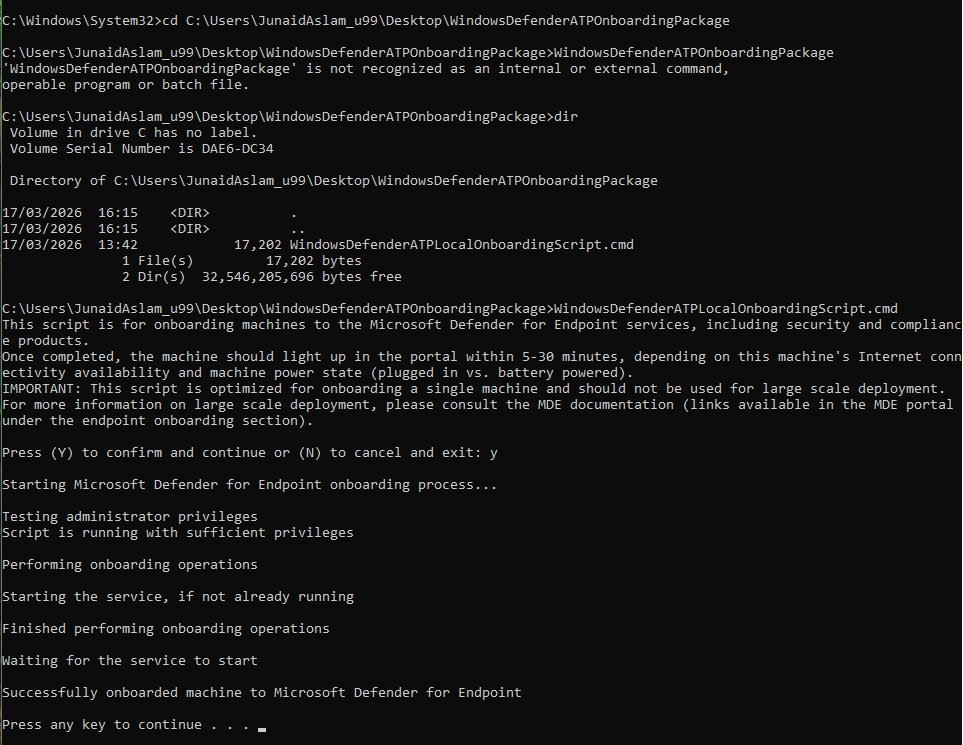
- hostname=STAR-IT01 (Not onboarded)
- If machine is already onboarded then type at command promt C:/sc query sense
- If machine is not already onboarded then type at command promt C:/sc query sense
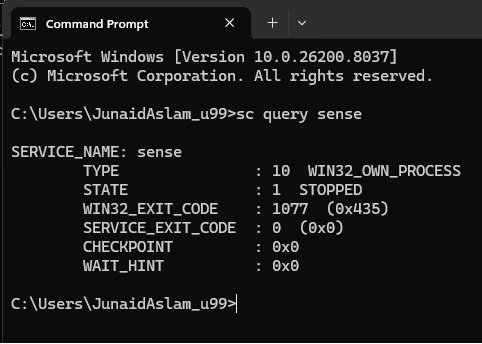
- check device is onboarded:
- Go to Defender/Assets/Devices/Device Inventory:
- or
- Run a detection test:
- Run powershell script on onboarded machine: copy the below command and run in powershell or ccommand prompt.
- powershell.exe -NoExit -ExecutionPolicy Bypass -WindowStyle Hidden $ErrorActionPreference= 'silentlycontinue';(New-Object System.Net.WebClient).DownloadFile('http://127.0.0.1/1.exe', 'C:\\test-WDATP-test\\invoice.exe');Start-Process 'C:\\test-WDATP-test\\invoice.exe'
- Note: If powershell window/cmd close automatically which indicates device is onboarded successfully.
- Check Alerts:
- Go to Incidents & Alerts and click alerts.
- click related lerts and check details.
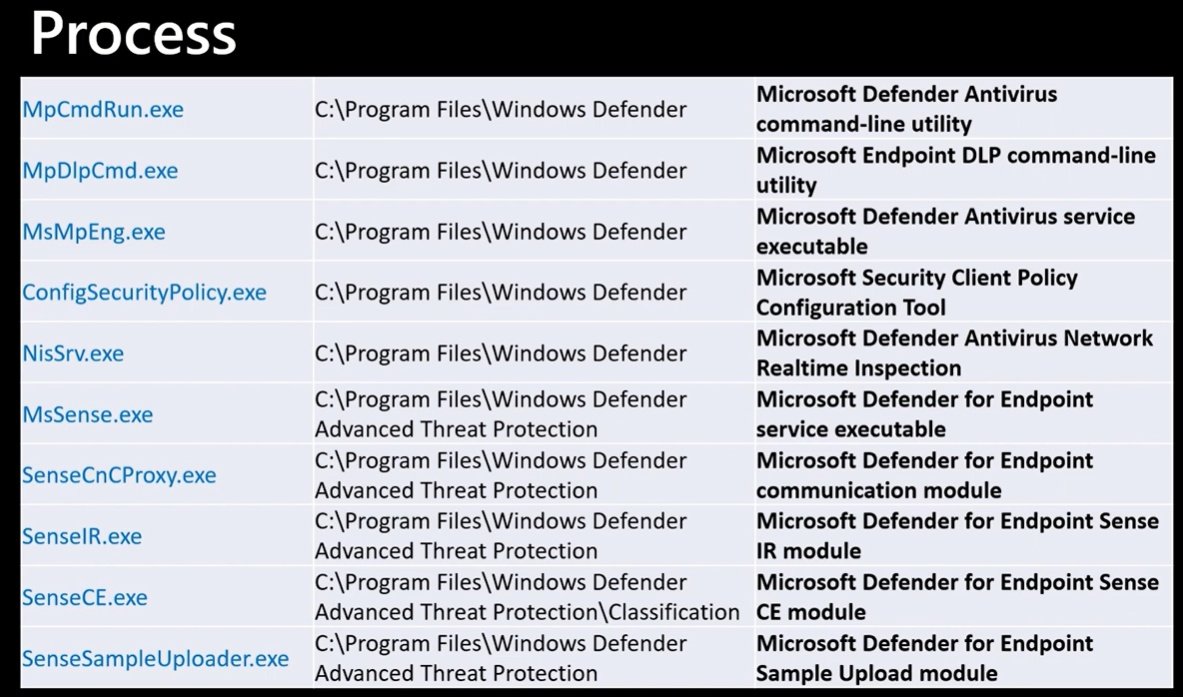
- Run the process commands on powershell on both onboarded and not onboarded machines.
- Not onboarded:
- $Process = Get-Process | select Name | Sort-Object -Property Name $services = "MpCmdRun","MpDlpCmd","MsMpEng","ConfigSecurityPolicy","NisSrv","MsSense","SenseCnCProxy","SenseIR","SenseCE","SenseSampleUploader" foreach ($serv in $services) { if($Process.Name -contains $serv) { Write-Host $serv "is running." -ForegroundColor Green } else { Write-Host $serv "is not running" -ForegroundColor Red } }
- MsSense is not running: It should run.
- Code
- Prerequisites:
Windows 10 and 11 with GPO
- code
- code
- code
Windows 10 and 11 With Mobile Device Management / Intune
- Go to security.microsoft.com/settings/Endpoints/Device management/onboarding
- When you have enrolled endpoint devices with intune, it is the easiest method to onboard to MDE.
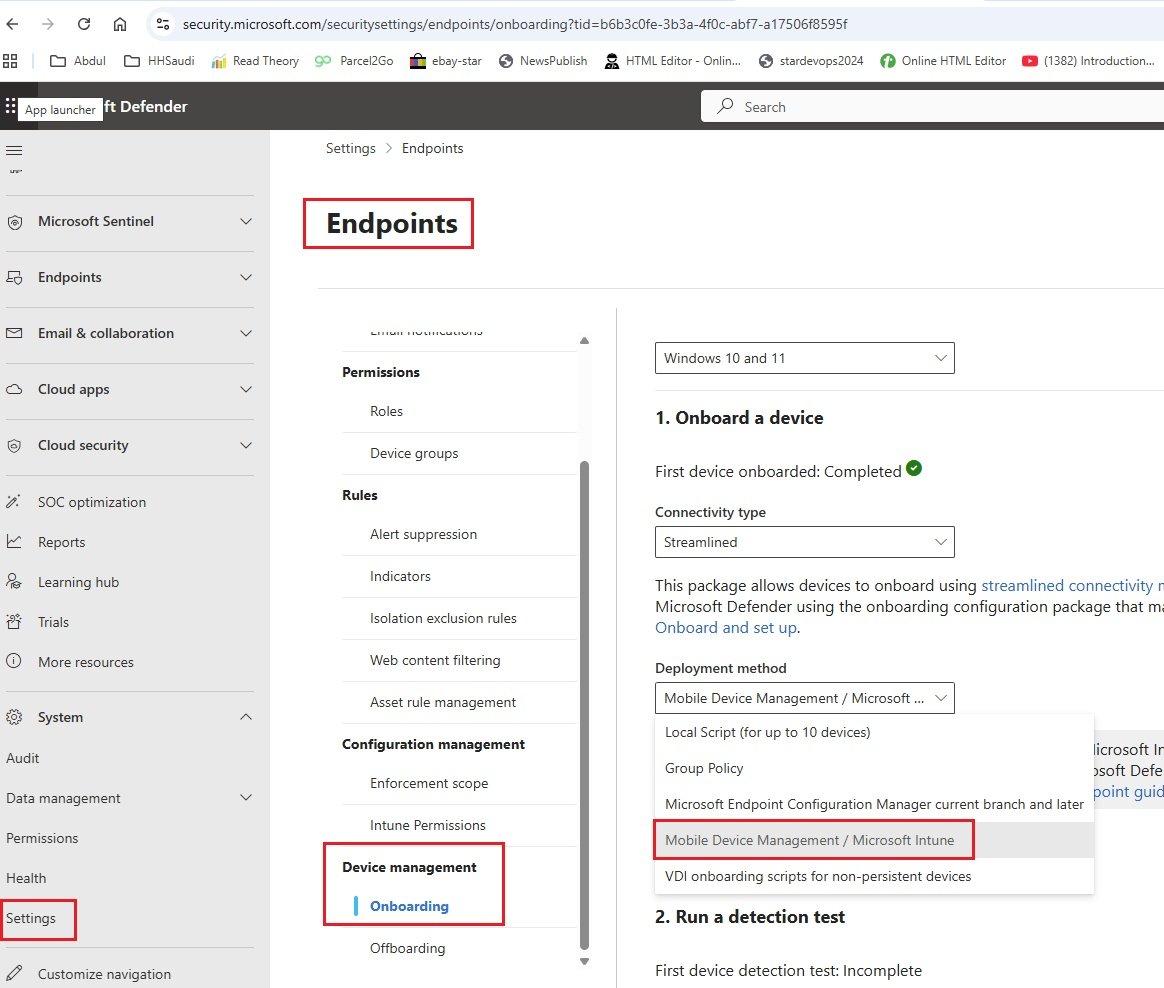
- click Download onborading package or Auto Deploy
- Onboarding with package:
- Download the zip package.
- copy to endpoint machine and extract all.
- Open command prompt with administrative privilege.
- Run the package.
- Onboarding with Auto deploy:
- Endpoint Detection and response (EDR):
- Go to Intune portal: intune.microsoft.com/Endpoint security/Microsoft Defender for Endpoint
- Connection status = unavailable (some toggles are disabled and acting as "off" because Microsoft Defender for Endpoint is not actively communicating with intune.....
- Switch on Microsoft Intune Connection:
- Go to Microsoft Defender/Systems/Settings/Endpoints/General/Advanced features and switch on Microsoft Intune Connection.
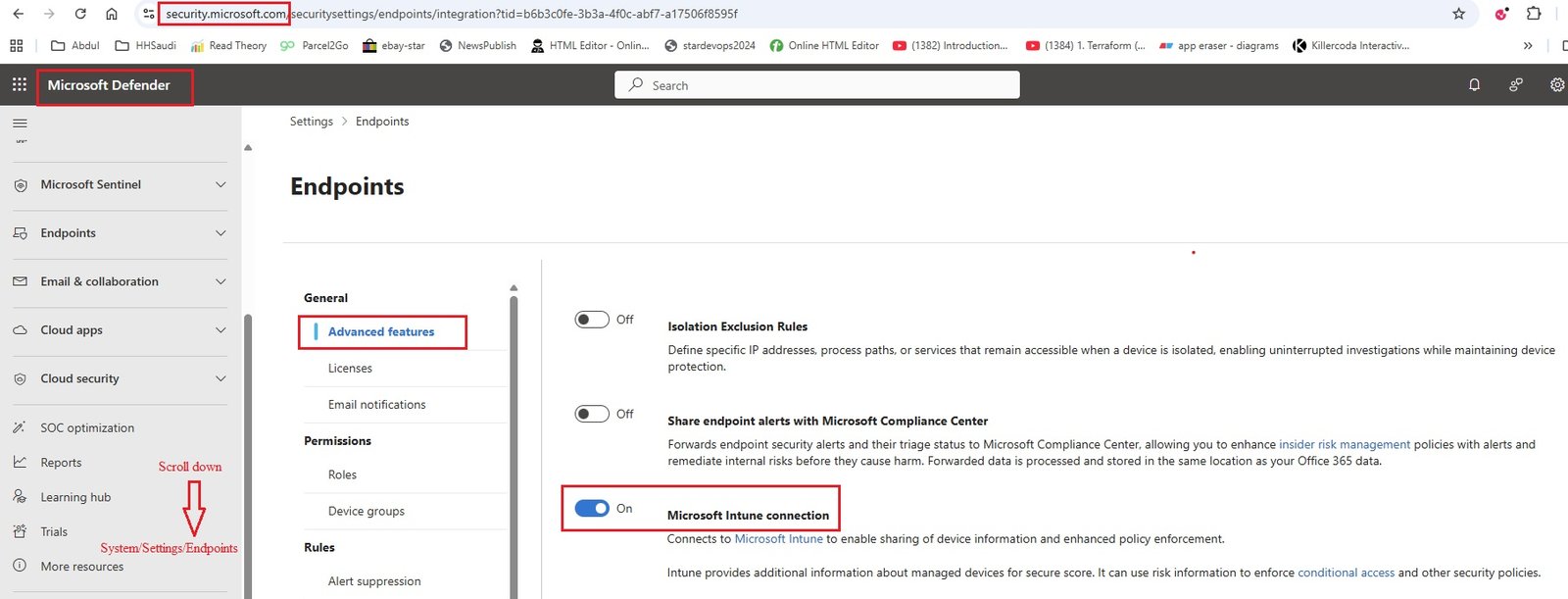
- This connects microsoft Intune to enable sharing of device information and enhanced policy enforcement.
- Go back to Intune portal and check status is Available.
- Scroll down and swith on: Connect Windows devices version 10.0.15063 and above to Microsoft Defender for Endpoint.
- When on, compliance policies using the Device Threat Level rule will evaluate devices including data from this connector.
When off, Intune will not use device risk details sent over this connector during device compliance calculation for policies that have a Device Threat Level configured. Existing devices that are not compliant due to risk levels obtained from this connector will also become compliant. 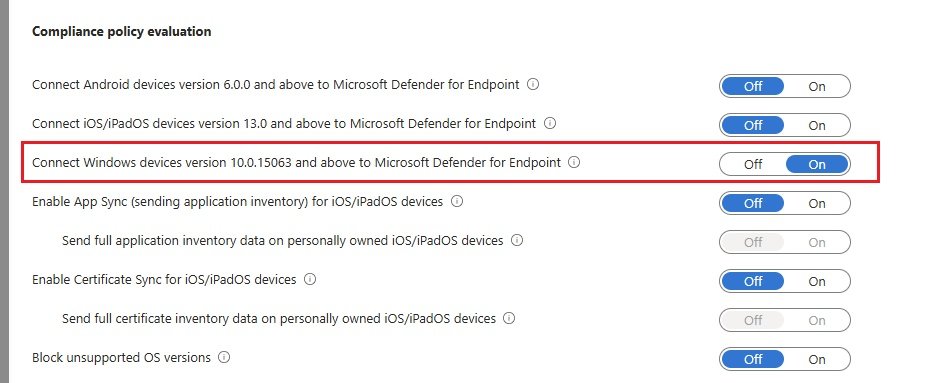
- Connection status = Enable
- Onboarding the devices automatically:
- Click Endpoint detection and response-->Create policy
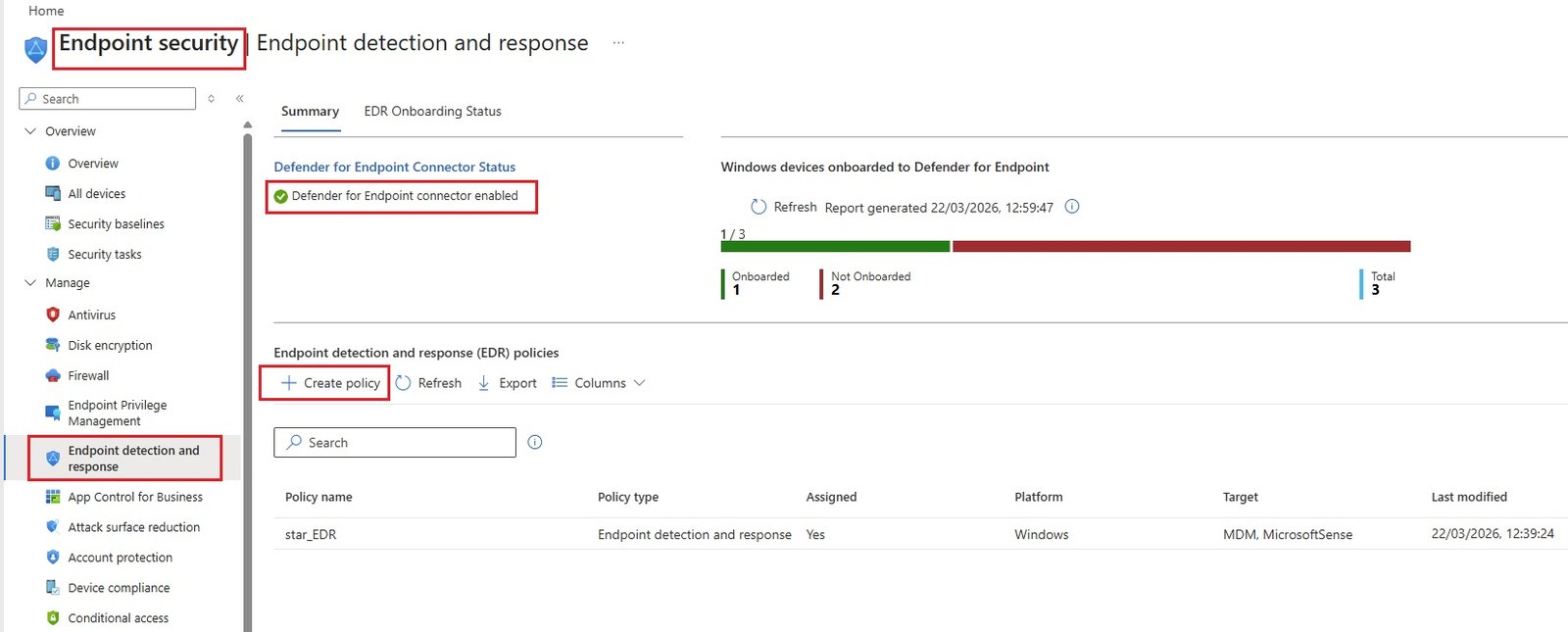
- Platform = Windows
- Profile = Endpoint detection and response --> create
- Basics
- Name = star_EDR
- Configuration settings: Auto from connector
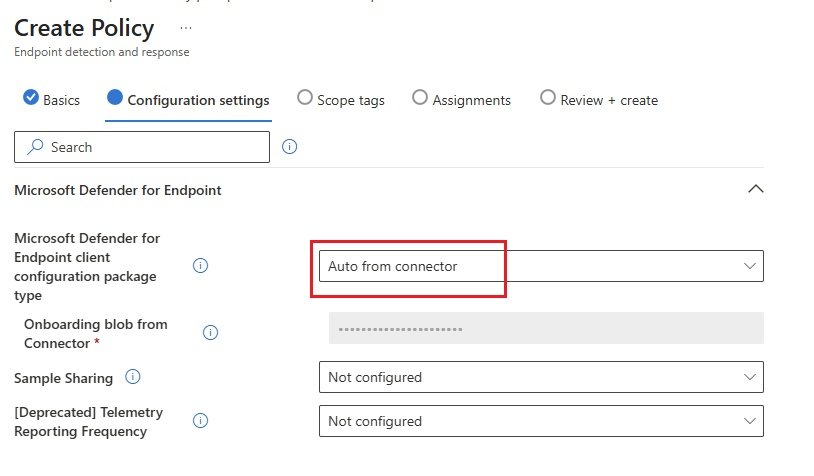
- Scope tags:
- Assignments: select group that will receive this profile,
- Review = Create.
- When you deploy this policy to use group then user must sign in to the device so that this policy applies and device can onboard to Defender for Endpoints.
- Device compliance:
- Click Device compliance-->Create policy
- Platform = windows 10 and later
- Profile type = Windows 10/11 compliance policy
- Basics
- Name = compliance_policy1
- Compliance settings: --> Microsoft Defender for Endpoint-->Require the device to be at or under the machine risk score = Clear, Low, Medium, High, Not configured (Select the maximum allowed machine risk score for devices evaluated by Microsoft Defender for Endpoint. Devices which exceed this score get marked as noncompliant)
- Actions for noncompliance:
- Action = send email to enduser, Add device to retire list
- select message templates: If template is not created, go to
- Additional recepients = select
- Assignments = select group
- Review and create.
- Check the onboard devices.
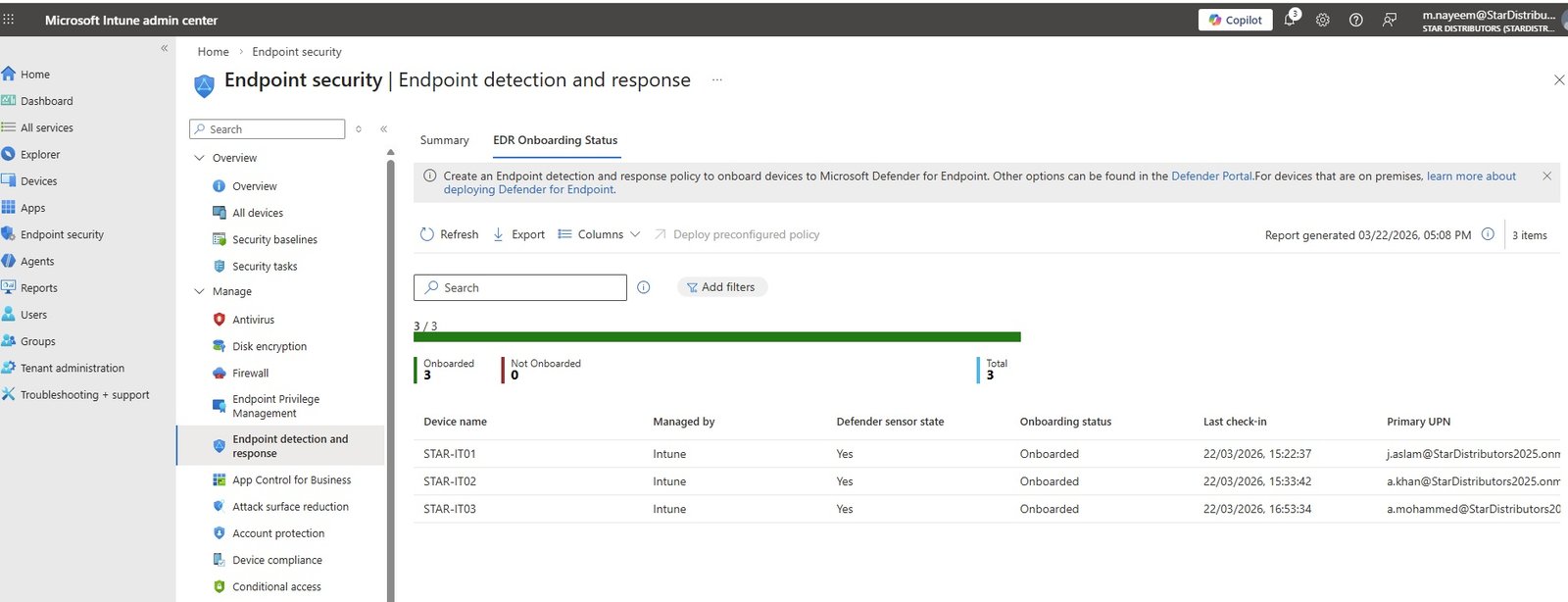
- Conditional Access:
- Create policy --> redirect to Azure Entra Id/Security/Conditional Access policy
- Endpoint Detection and response (EDR):
Windows Server 2008 R2 SP1 / 2012, 2016, 2019, 2025
- code
- code
- code
macOS
- code
- code
- code
Linux / Linux Server
- code
- code
- code
iOS & Android
- code
- code
- code
- Offboarding Devices from MDE (Microsoft Defender for Endpoint)
- Windows 10 & 11 with local script
- https://learn.microsoft.com/en-us/defender-endpoint/offboard-machines
- Go to security.microsoft.com/System/Settings/Endpoints/Device management and click offoarding. (Defender admin portal)
- click Download offboard package: Select O/S = Windows 10 and 11, local script. Copy the package in the desired onboarding machine. extract and run.
- This downloaded package is valied only for 30 days.
- open command prompt as administrator and go to the location where file was extracted and run run the script.
- To confirm offboarding, open regedit and go to location and check value of onboarding state is 0x0000000(0)
- Once the devices is offboarded, it shows for 7 days and remain for 6 months as retain period.
- offboarding1.jpg
- Windows 10 & 11 with local script
- Deployment packages
- Offboarding
Email & collaboration
- User reported settings
-
Customize how users report messages in Outlook and Teams. Reported messages will be sent to the mailbox of your choice and appear on the Submissions page. Learn more about user reported settings.
- Outlook:
- Microsoft Teams:
- Email notifications:
- Reporting from quarantine:
-
- User tags
- Tags help you add context to users for investigations, policy creation, and more. Learn more about user tags
- Create
- User reported settings
- Device Discovery: Not visisble in P1 liense.
Cloud Apps
- cloud_apps1.jpg
- System
- About:
- Organization details:
- API tickets:
- AI agents
- Copilot Studio AI Agents:
- Cloud Discovery
- Score metrics:
- Snapshot reports:
- Continuous reports:
- Automatic log upload:
- App tags:
- Exlude entities:
- Anonymization:
- Delete data:
- Conditional Access App Control
- Edge for Business protection:
- Microsoft Sentinel
Integration with Intune
code
- code
- code
- code
code
- code
- code
- code
code
- code
- code
- code
code
- code
- code
- code
code
- code
- code
- code
code
- code
- code
- code
code
- code
- code
- code
TVM - Threat and Vulnerability Management: P2 license
TVM
- This service is available in P2 license of Microsoft Defender for Endpoint.
- It is one of the service provided by Microsoft Defender for Endpoint, to protect the endpoint by discovering vulenrability and remediate.
- Find out weaknesses and misconfiguration that exists on a specific devices.
- tvm1.jpg
- It captures some data from the device like some softwares, O/S and hardware details. When you onboarding the device then sensor start sending the details to MDE.
- The details which sent to MDE:
- File Data - File name, size and hashes
- System file changes
- Process data
- Registry values and registry changes
- Network connection data
- Device details (name and OS)
- Deep optics of kernel and memory manager
- TVM options:
- Dashboard:
- Recommendations:
- Remediations:
- Software Inventory:
- Weakness:
- Event Timeline
- Code
Security Recommendation:
- Go to Microsoft Defender by security.microsoft.com/Vulnerability management
- code
- code
code
- code
- code
- code
code
- code
- code
- code
code
- code
- code
- code
code
- code
- code
- code
code
- code
- code
- code
Exclusion
code
- code
- code
- code
code
- code
- code
- code
code
- code
- code
- code
code
- code
- code
- code
code
- code
- code
- code
code
- code
- code
- code
code
- code
- code
- code
Tamper Protection
code
- code
- code
- code
code
- code
- code
- code
code
- code
- code
- code
code
- code
- code
- code
code
- code
- code
- code
code
- code
- code
- code
code
- code
- code
- code
Disk Encryption (BitLocker)
What is Disk Encryption (BitLocker)
- BitLocker provides additional data protection layer by using the encryption/decryption technology.
- Its a data protection feature that integrates with the O/S and addresses the threats of data theft or exposure from lost, stolen or inappropriately decomissioned computers.
- BitLocker provides the most protection when used a Trusted Platform Module TPM version 1.2 or later.
- code
- code
Create Endpoint Security Disk Enctyption Policy for BitLocker
- Go to Intune admin center -->Endpoint Security -->Disk encryption --> Create Policy
- disk_encryption1.jpg
- Platform = Windows 10 and later
- Profile = Bitlocker
- Click create
- Basics
- Name = Star_bitlocker
- Description = Bitlocker policy for Endpoints
- Configuration settings
- BitLocker:
- Require Device Enctyption: Not Configured , Disabled (Default), Enabled
- Allow Warning For Other Disk Encryption: Not Configured , Disabled (Default), Enabled
- Configure Recovery Password Rotation: Not Configured , Refresh off (Default), Refresh on for Entra Id-joined devices, Refresh on for both Entra ID-joined and hybrid-joined devices
- BitLocker Drive Encryption:
- Choose drive encryption method and cipher strength (Windows 10 [Version 1511] and later): Not Configured , Disabled (Default), Enabled
- Provide the unique identifiers for your organization: Not Configured , Disabled (Default), Enabled
- Operating System Drives:
- Enforce drive encryption type on operating system drives: Not Configured , Disabled (Default), Enabled
- Require additional authentication at startup: Not Configured , Disabled (Default), Enabled
- Configure minimum PIN length for startup: Not Configured , Disabled (Default), Enabled
- Allow enhanced PINs for startup: Not Configured , Disabled (Default), Enabled
- Disallow standard users from changing the PIN or password: Not Configured , Disabled (Default), Enabled
- Allow devices compliant with InstantGo or HSTI to opt out of pre-boot PIN: Not Configured , Disabled (Default), Enabled
- Enable use of BitLocker authentication requiring preboot keyboard input on slates: Not Configured , Disabled (Default), Enabled
- Choose how BitLocker-protected operating system drives can be recovered: Not Configured , Disabled (Default), Enabled
- Configure pre-boot recovery message and URL: Not Configured , Disabled (Default), Enabled
- Fixed Data Drives:
- Enforce drive encryption type on fixed data drives: Not Configured , Disabled (Default), Enabled
- Choose how BitLocker-protected fixed drives can be recovered: Not Configured , Disabled (Default), Enabled
- Deny write access to fixed drives not protected by BitLocker: Not Configured , Disabled (Default), Enabled
- Scope tags:
- Assignments:
- select group to which this applies.
- Save
- Go to Endpoint machine --> settings-->Accounts-->work or school--> info --> sync.
- popup message: Encryption needed.
- disk_encryption3.jpg
- check box: I don't have any other disk encrption software installed, encrypt all my disks.
- disk_encryption4.jpg
- Disk encryption will start.
- Enter the password
- disk_encryption5.jpg
- Save to: your Azure AD account, Save to USB flash drive, Save to a file, print the recovery key: choose required.
- Click Activate Bitlocker.
- Device encrypt will start, once it is done, an icon will appear.
- disk_encryption6.jpg
- Go to Intune admin center/Devices/All Device/click device/Recovery keys:
- disk_encryption7.jpg
- click show recovery key:
- Report: Devices/Monitor/type Encryption and select encryption status
- disk_encryption8.jpg
Create Device Configuration Profile for BitLocker
- Go to Intune admin center --> Devices --> Configuration Profiles --> Create New Policy
- disk_encryption2.jpg
- Code
- code
- code
code
- code
- code
- code
code
- code
- code
- code
code
- code
- code
- code
code
- code
- code
- code
Firewall
Settings: You can set allow/Block the traffic
- Go to Intune Admin Center/Endpoint Security / Firewall
- firewall1.jpg
- Create policy:
- Platform = Windows
- Profile = Windows Firewall
- Basic
- Name = star_firewall1
- Configurtion Settings: The Firewall configuration service provider configures the Windows Defender Firewall global settings, per profile settings, as well as the desired set of custom rules to be enforced on the device. Using the Firewall CSP the IT admin can now manage non-domain devices, and reduce the risk of network security threats across all systems connecting to the corporate network.
- Certificate revocation list verification =
- Disable Stateful Ftp =
- Enable Packet Queue =
- IPsec Exceptions =
- Opportunistically Match Auth Set Per KM =
- Preshared Key Encoding =
- Security association idle time =
- Enable Domain Network Firewall =
- Enable Private Network Firewall =
- Enable Public Network Firewall =
- VM Creator Id
- Target =
- Auditing
- Object Access Audit Filtering Platform Connection =
- Object Access Audit Filtering Platform Packet Drop =
- Network List Manager
- Allowed Tls Authentication Endpoints =
- Configured Tls Authentication Network Name =
- Create policy.
- code
code
- code
- code
- code
code
- code
- code
- code
code
- code
- code
- code
code
- code
- code
- code
code
- code
- code
- code
code
- code
- code
- code
EDR - Endpoint Detection and Response
code
- code
- code
- code
code
- code
- code
- code
code
- code
- code
- code
code
- code
- code
- code
code
- code
- code
- code
code
- code
- code
- code
code
- code
- code
- code
Configuration Profile
Profile Settings
- Go to intune admin center/Devices/Configuration.
- configuration1.jpg
- Create New Policy-->Windows 10 or higer --> Template
- configuration2.jpg
- Basics
- Name = Star_profile1
- Description = profile
- Profile Type = Endpoint Protection
- Configuration settings
- configuration3.jpg
- Base on requirement set the profile.
- Assignments
- Applicability Rules
- Review + create
- code
- code
code
- code
- code
- code
code
- code
- code
- code
code
- code
- code
- code
code
- code
- code
- code
code
- code
- code
- code
code
- code
- code
- code
Code
code
- code
- code
- code
code
- code
- code
- code
code
- code
- code
- code
code
- code
- code
- code
code
- code
- code
- code
code
- code
- code
- code
code
- code
- code
- code
Code
code
- code
- code
- code
code
- code
- code
- code
code
- code
- code
- code
code
- code
- code
- code
code
- code
- code
- code
code
- code
- code
- code
code
- code
- code
- code
Code
code
- code
- code
- code
code
- code
- code
- code
code
- code
- code
- code
code
- code
- code
- code
code
- code
- code
- code
code
- code
- code
- code
code
- code
- code
- code
Code
code
- code
- code
- code
code
- code
- code
- code
code
- code
- code
- code
code
- code
- code
- code
code
- code
- code
- code
code
- code
- code
- code
code
- code
- code
- code
Code
code
- code
- code
- code
code
- code
- code
- code
code
- code
- code
- code
code
- code
- code
- code
code
- code
- code
- code
code
- code
- code
- code
code
- code
- code
- code
Code
code
- code
- code
- code
code
- code
- code
- code
code
- code
- code
- code
code
- code
- code
- code
code
- code
- code
- code
code
- code
- code
- code
code
- code
- code
- code
Code
code
- code
- code
- code
code
- code
- code
- code
code
- code
- code
- code
code
- code
- code
- code
code
- code
- code
- code
code
- code
- code
- code
code
- code
- code
- code
Code
code
- code
- code
- code
code
- code
- code
- code
code
- code
- code
- code
code
- code
- code
- code
code
- code
- code
- code
code
- code
- code
- code
code
- code
- code
- code